Few things are more frustrating than gearing up for a session in Arc Raiders only to be stopped by the dreaded “Connection to the Game Server Lost” message. Whether you are in the middle of a raid or attempting to log in, connectivity issues can disrupt progress and enjoyment. Fortunately, in most cases this error is not permanent and can be resolved with structured troubleshooting. This guide explains the most common causes and provides clear, practical solutions to restore a stable connection.
TL;DR: The “Connection to the Game Server Lost” error in Arc Raiders is usually caused by unstable internet, firewall or antivirus interference, outdated drivers, or temporary server outages. Start by checking the game’s server status and rebooting your network equipment. Then verify game files, update drivers, and adjust firewall settings if needed. In persistent cases, port forwarding or contacting your ISP may be necessary.
Why This Error Happens
Online multiplayer titles like Arc Raiders rely on consistent, low-latency communication between your device and remote servers. If that communication is interrupted—even briefly—you may see a disconnection error. The most common root causes include:
- Server outages or maintenance
- Unstable or slow internet connection
- High packet loss or latency (ping spikes)
- Firewall or antivirus interference
- Corrupted game files
- Outdated network drivers
Understanding which category your issue falls into is critical. Rather than attempting every fix at random, move through the steps methodically.
1. Check Arc Raiders Server Status First
Before changing settings on your system, confirm that the problem is not on the developer’s end. Multiplayer games regularly undergo maintenance or experience temporary outages.
To verify server status:
- Visit the official Arc Raiders website or status page.
- Check the game’s verified social media accounts.
- Look at community forums or platforms like Reddit for outage reports.
If servers are down, the only solution is to wait. Attempting further troubleshooting during an outage will not resolve the issue.
2. Restart Your Router and Modem
Temporary router issues are one of the most overlooked causes of connection loss. A simple power cycle can clear corrupted cache data and refresh your network connection.
How to properly restart your network equipment:
- Turn off your PC or console.
- Unplug your modem and router from power.
- Wait at least 60 seconds.
- Plug the modem back in and wait for full synchronization.
- Power on the router.
- Restart your device and launch the game.
This process re-establishes your connection to your Internet Service Provider (ISP) and often resolves transient disconnection issues.
3. Switch to a Wired Connection
Wireless connections are convenient but more prone to instability. Signal interference, distance from the router, and network congestion can all cause packet loss.
If possible, switch to an Ethernet connection. A wired setup typically provides:
- Lower latency
- Reduced packet loss
- More stable throughput
- Fewer random disconnects
If Ethernet is not feasible, position yourself closer to the router and minimize interference from other devices.
4. Run a Network Stability Test
Even if your internet seems functional, hidden issues like jitter or packet loss can interrupt game sessions.
Perform the following tests:
- Run a speed test to confirm download and upload speeds.
- Use a ping test to check latency consistency.
- Look for packet loss using extended ping commands.
Acceptable benchmarks for online gaming:
- Latency: Under 50ms is ideal.
- Packet loss: 0% preferred.
- Upload speed: At least 5 Mbps.
If your connection shows spikes or packet loss, the issue may lie with your ISP rather than the game.
5. Allow Arc Raiders Through Firewall and Antivirus
Security software sometimes mistakenly blocks legitimate game traffic. Windows Firewall or third-party antivirus programs can interrupt communication with game servers.
To allow the game through Windows Firewall:
- Open Control Panel.
- Select System and Security.
- Click Windows Defender Firewall.
- Choose Allow an app or feature through Firewall.
- Locate Arc Raiders and check both Private and Public boxes.
If you use third-party antivirus software, add the game directory to its exception list.
6. Verify Game Files
Corrupted or missing files can interfere with server connectivity. Most modern launchers provide an integrated file verification feature.
On Steam:
- Right-click Arc Raiders in your library.
- Select Properties.
- Go to Installed Files.
- Click Verify integrity of game files.
The launcher will automatically download and replace corrupted files.
7. Update Network Drivers
Outdated network adapter drivers can cause intermittent disconnections or compatibility issues.
To update network drivers:
- Right-click the Start menu.
- Select Device Manager.
- Expand Network adapters.
- Right-click your adapter and select Update driver.
Alternatively, visit your motherboard or network adapter manufacturer’s website for the latest drivers.
8. Flush DNS and Reset Network Settings
Sometimes stored DNS data becomes outdated or corrupted. Flushing it can resolve persistent connection errors.
Steps to flush DNS in Windows:
- Open Command Prompt as Administrator.
- Type: ipconfig /flushdns
- Press Enter.
For a more comprehensive reset:
- Open Command Prompt as Administrator.
- Run:
- netsh int ip reset
- netsh winsock reset
- Restart your computer.
9. Disable VPN or Proxy Services
VPNs can introduce extra routing steps that increase latency or conflict with server authentication systems.
If you are using a VPN:
- Disable it temporarily.
- Restart the game.
- Test connection stability.
While VPNs provide privacy benefits, they can interfere with multiplayer matchmaking and server communication.
10. Configure Port Forwarding (Advanced)
If you consistently experience connection drops despite a stable network, your router’s NAT configuration may be restrictive.
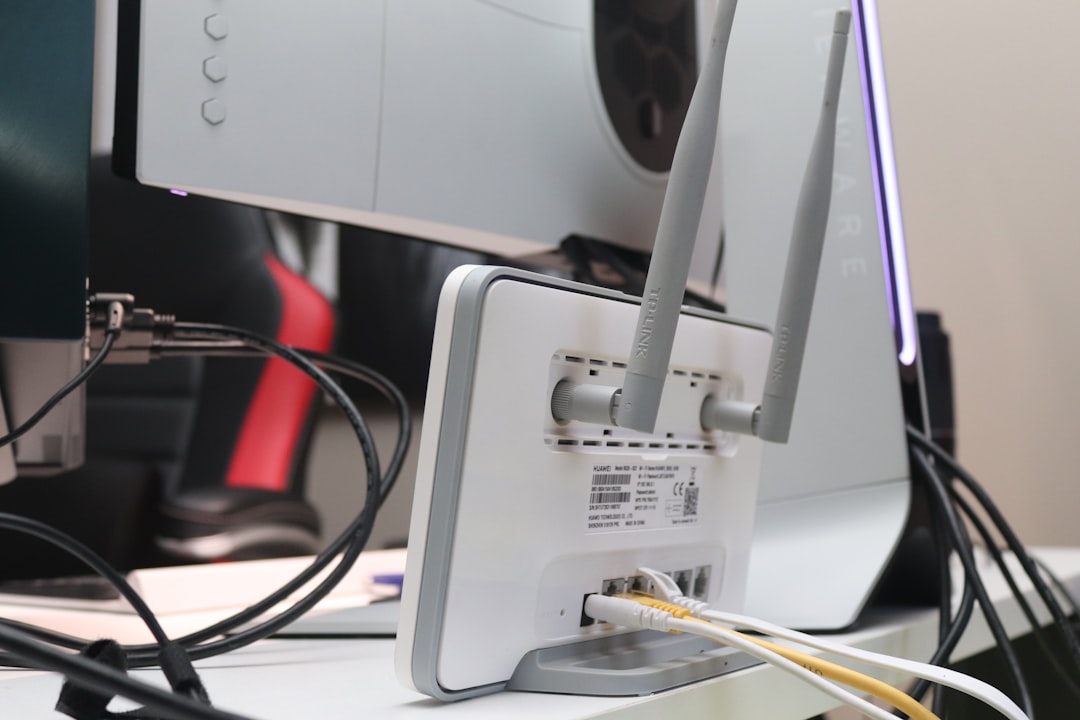
Port forwarding allows incoming traffic required by Arc Raiders to pass through your router. You will need:
- Your PC’s local IP address
- Access to your router’s admin panel
- The specific ports used by the game (check official documentation)
Because this process varies by router model, consult your manufacturer’s guide. If you are unfamiliar with networking, proceed cautiously or seek assistance.
11. Contact Your ISP
If disconnections persist across multiple online games or services, your ISP may be experiencing routing instability or bandwidth throttling.
When contacting support, ask about:
- Packet loss in your area
- Routing issues to the game’s server region
- Modem firmware updates
Providing speed test results and ping logs will strengthen your case.
12. Reinstall the Game (Last Resort)
If all other steps fail, a full reinstall may eliminate deeply corrupted files or configuration conflicts. Make sure to:
- Uninstall the game completely.
- Delete leftover folders in the installation directory.
- Restart your system before reinstalling.
This method is time-consuming but can resolve persistent technical faults.
Preventing Future Disconnections
After resolving the issue, adopt these preventative measures:
- Keep drivers and the game updated.
- Use wired internet whenever possible.
- Avoid heavy downloads during gameplay.
- Periodically reboot your router.
- Monitor ISP reliability in your area.
Consistency in system maintenance significantly reduces the likelihood of recurring server connection errors.
Final Thoughts
The “Connection to the Game Server Lost” error in Arc Raiders can feel alarming, particularly during competitive sessions. However, in most cases it stems from solvable network or configuration issues rather than account problems or bans. By following a structured troubleshooting process—starting with server status checks and moving through network diagnostics—you can identify and eliminate the root cause efficiently.
Reliable online gaming demands both stable infrastructure and properly configured hardware. By strengthening both, you significantly reduce the chance of experiencing disruptive disconnections in the future.