
If you changed your WordPress category URLs, set up 301 redirects before Google and visitors hit dead ends. Google treats a 301 as a permanent move, which helps search engines understand where the old page went [source: Google]. That matters when a simple category cleanup turns /category/news/ into /blog/news/ and dozens, or hundreds, of indexed URLs suddenly point nowhere.
TLDR: If you rename, delete, merge, or reorganize WordPress categories, use 301 redirects from the old category URLs to the new ones. For example, if 420 indexed posts once lived under /category/tutorials/ and now sit under /guides/, a redirect can preserve traffic that might otherwise land on 404 pages. One small site can lose 15% to 30% of organic visits after a messy URL change, especially if old category pages were ranking well. The 301 Redirects – Easy Redirect Manager plugin is a practical way to fix this without editing server files.

Why category changes break search traffic
WordPress categories look harmless. You rename “News” to “Updates.” You merge “Tips” into “Guides.” You remove “Uncategorized” because, honestly, it should never have been public in the first place.
Then the trouble starts.
Old category archive URLs may still appear in Google. Other sites may still link to them. Social posts may still point to them. Email newsletters may still contain them. If those URLs now return a 404 error, users bounce. Search engines get mixed signals. Rankings can slide.
A 301 redirect tells browsers and search engines: “This page has moved for good. Use this new address instead.”
That is exactly what you want after changing category structure.
When should you use 301 redirects?
Use them any time an old WordPress category URL no longer matches the new one. Common cases include:
- Renaming a category, such as /category/news/ to /category/company-updates/.
- Changing the category base, such as /category/guides/ to /resources/guides/.
- Merging two categories, such as /tips/ and /tutorials/ into /guides/.
- Deleting thin category archives and sending users to a stronger page.
- Moving posts into a new content hub with cleaner URLs.
The catch is that WordPress does not always handle this cleanly on its own. Sometimes it changes slugs. Sometimes it leaves old category archive links behind. Sometimes plugins add their own URL rules. Expect to waste time checking URLs if your site has been around for a few years.
Use the 301 Redirects plugin to map old URLs to new ones
The plugin you should look at is 301 Redirects – Easy Redirect Manager. It is built for WordPress users who need simple redirect control without touching the .htaccess file or asking a developer to patch server rules.
For more advanced redirect monitoring and cleanup, you can also visit WP 301 Redirects.
With the plugin, you can create rules like this:
- Old URL: /category/news/
- New URL: /category/company-updates/
- Redirect type: 301 permanent
That looks basic, but it can save a lot of traffic. It also keeps visitors from staring at an error page and wondering if your site is broken.
A simple redirect plan before you change categories
Do not start by deleting categories. Start with a list. It sounds boring. It is also the part that saves you later.
- Export or copy your current category URLs. Include category archives and any important posts affected by the structure change.
- Decide the new destination for each old URL. Send users to the closest matching new category, not just the homepage.
- Add redirects in the plugin. Use 301 redirects for permanent category changes.
- Test every high value URL. Open the old address in a private browser window and make sure it lands on the right page.
- Check for redirect chains. One jump is fine. Three jumps feels sloppy and slows things down.
It drives me crazy when a tool makes you click through five screens just to add one redirect. This is why a focused redirect plugin is useful. You need quick input, clear rules, and fewer places to make mistakes.
Where should old category URLs point?
Pick the closest match. That is the main rule.
If /category/wordpress-tips/ became /guides/wordpress/, redirect there. If two old categories were merged into one new hub, point both old URLs to that hub. If a category had strong rankings for a specific topic, do not dump it on the homepage. That weakens the experience.
Good redirects feel invisible. The visitor clicks an old link and still gets what they expected.
Common mistakes to avoid
- Redirecting everything to the homepage. It is lazy and often poor for users.
- Using temporary redirects. For permanent category changes, use 301, not 302.
- Ignoring old internal links. Update menus, widgets, related posts, and old articles.
- Creating loops. Do not redirect URL A to URL B if URL B redirects back to URL A.
- Forgetting mobile testing. A redirect that works on desktop should also work cleanly on mobile.
Watch your analytics after the change
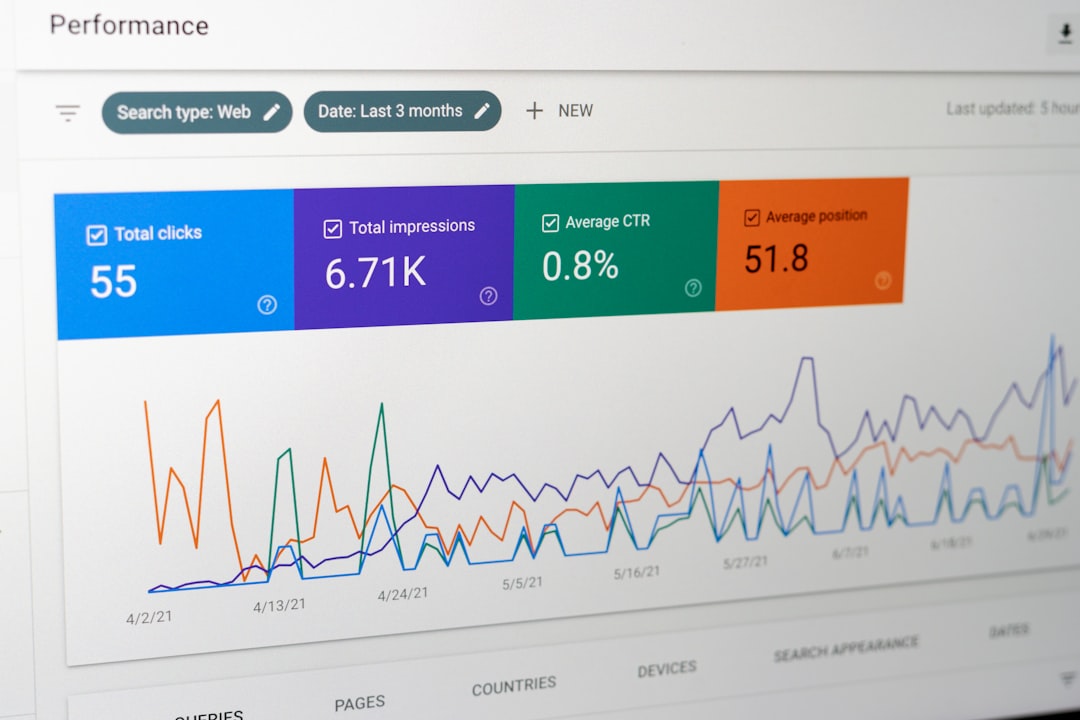
After updating your category structure, check traffic for at least two to four weeks. Look at organic visits, 404 errors, top landing pages, and category archive performance. If a former category page brought in 2,000 visits a month, treat its redirect as high priority.
You should also search your own site for old category links. WordPress themes, breadcrumbs, page builders, and old widgets can keep outdated links alive. Annoyingly, one forgotten sidebar link can sit there for years.
A clean category structure is good. It makes your site easier to use and easier to manage. But changing URLs without redirects is like moving your shop and leaving no sign on the old door. Use 301 redirects, keep users moving, and give search engines a clear path to your new WordPress structure.


