
Seeing a red WiFi signal icon in Discord can be alarming, especially if you rely on the platform for gaming, business meetings, or community management. That red indicator typically signals a connection issue that affects voice quality, stability, or latency. While it may appear suddenly, the underlying causes are usually identifiable and fixable with a systematic approach. Understanding what the symbol means and how to respond can quickly restore smooth communication.
TLDR: A red WiFi symbol in Discord usually indicates high latency, packet loss, or a disrupted internet connection. Common causes include unstable WiFi, network congestion, bandwidth-heavy applications, VPN interference, or Discord server issues. Most problems can be fixed by restarting your router, switching networks, adjusting Discord settings, or using a wired connection. Identifying whether the issue is local or server-side is the first step toward a solution.
What Does the Red WiFi Signal Mean in Discord?
Discord uses a small connection status icon to show the health of your real-time communication. When the icon turns red, it typically means:
- High latency (ping spikes)
- Packet loss
- Connection instability
- Temporary server disconnects
In practical terms, this may cause robotic voices, delayed audio, dropped calls, or complete disconnections from a voice channel. Discord continuously monitors your connection to its servers, and when performance drops below an acceptable threshold, it alerts you visually.

Common Causes of the Red WiFi Signal
1. Weak or Unstable WiFi Signal
The most common cause is a weak wireless connection. If your device is far from the router or facing interference from walls and electronic devices, your connection quality may degrade.
Common WiFi interference sources include:
- Microwaves
- Bluetooth devices
- Thick concrete or metal walls
- Other nearby WiFi networks
Signal fluctuation can lead to packet loss, which Discord flags with the red indicator.
2. Network Congestion
If multiple people in your household are streaming videos, downloading large files, or gaming simultaneously, bandwidth can become saturated. Discord voice requires consistent data flow. Even if your internet speed is technically “fast,” congestion can interrupt stability.
3. High Latency or ISP Issues
Your Internet Service Provider (ISP) may be experiencing routing problems or temporary outages. High ping (usually over 250ms) can make real-time voice nearly unusable, triggering the red symbol.
4. VPN or Proxy Interference
While VPNs enhance privacy, they can sometimes introduce latency depending on server distance and load. If your VPN server is geographically far from the Discord server you’re connected to, performance may suffer.
5. Discord Server Problems
Occasionally, the problem isn’t on your end. A regional Discord server may experience temporary instability. In such cases, multiple users in the same voice channel may report similar issues.
6. Outdated App or Corrupted Cache
An outdated Discord app or corrupted local files can sometimes affect connection performance. Though less common, software-related issues should not be overlooked.
Step-by-Step Fixes for the Red WiFi Signal
To resolve the issue efficiently, follow a structured troubleshooting process.
1. Restart Your Router and Modem
This simple step often resolves transient ISP routing issues. Turn off both devices for at least 60 seconds before restarting. This refreshes your IP address and clears temporary congestion.
2. Switch to a Wired Connection
A wired Ethernet connection provides significantly greater stability than WiFi. If possible, connect directly to your router.
Why this works:
- Reduces interference
- Minimizes packet loss
- Improves latency consistency
3. Move Closer to the Router
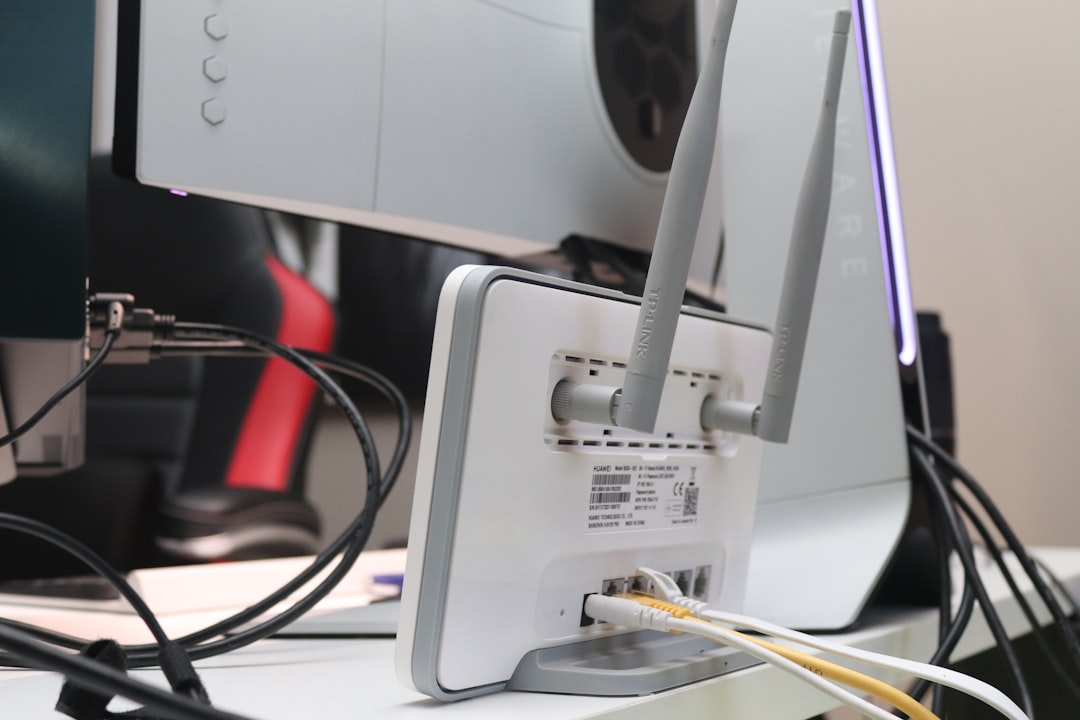
If Ethernet is not an option, reduce physical barriers between your device and router. Elevating the router and minimizing obstructions can noticeably improve signal strength.
4. Close Bandwidth-Heavy Applications
Check for:
- Active game downloads
- Cloud backups
- Streaming platforms
- Large file uploads
Limiting background data usage can immediately stabilize Discord’s voice connection.
5. Change Your Discord Server Region
If the issue appears isolated to one server, try switching the voice region (if you have permissions). Choose a region geographically closer to you.
6. Disable Quality of Service High Packet Priority
In Discord settings:
- Open User Settings
- Navigate to Voice & Video
- Disable Enable Quality of Service High Packet Priority
While designed to optimize traffic, some routers handle this feature poorly, causing more harm than good.
7. Test Your Internet Connection
Run a speed and packet loss test. Key metrics to watch:
- Ping: Ideally under 50ms
- Packet loss: 0% preferred
- Jitter: Under 30ms
If results are consistently poor, contact your ISP.
Quick Troubleshooting Comparison Chart
| Problem | Likely Cause | Recommended Fix | Difficulty |
|---|---|---|---|
| Red WiFi icon during peak hours | Network congestion | Close background apps or upgrade plan | Easy |
| Frequent audio cutouts | WiFi interference | Switch to Ethernet or move router | Moderate |
| High ping over 250ms | ISP routing issue | Restart router or contact ISP | Moderate |
| Issue only in one server | Server region mismatch | Change voice region | Easy |
| Problem when VPN is active | VPN latency | Disable or change VPN server | Easy |
Advanced Fixes for Persistent Problems
If standard solutions fail, you may need deeper adjustments.
Update Network Drivers
Outdated network adapter drivers can introduce instability. Check your device manager for available updates.
Reset Network Settings
On Windows or macOS, a network reset clears:
- Stored WiFi configurations
- DNS caches
- Previous routing tables
This can resolve hidden configuration conflicts.
Adjust Router Quality of Service Settings
Some routers allow manual bandwidth prioritization. Assign higher priority to:
- Your device’s MAC address
- Voice traffic
- Gaming ports
When the Issue Is on Discord’s End
Before investing too much time troubleshooting locally, check Discord’s status page. If outages or partial disruptions are reported, the issue may resolve naturally.
Signs the issue is server-side:
- Multiple users report the same problem
- Issue occurs only in one community
- Your general internet works perfectly elsewhere
In these cases, patience is often the only remedy.
Preventing Future Red Signal Issues
Maintaining a stable connection requires proactive measures:
- Use a dual-band or tri-band router
- Consider WiFi 6 equipment for better stability
- Regularly reboot networking equipment
- Limit simultaneous high-bandwidth tasks
- Invest in a mesh system for larger homes
For professionals who rely heavily on Discord for meetings or streaming, a wired connection and business-grade router are strongly recommended.
Final Thoughts
A red WiFi signal in Discord is not random—it is a clear diagnostic sign of connection instability. In most situations, the root cause lies in local WiFi weakness, bandwidth saturation, or temporary ISP issues. By approaching the problem methodically—starting with simple router restarts and moving toward more advanced network adjustments—you can typically restore optimal voice performance quickly.
The key is distinguishing between local network problems and server-side issues. Once you identify where the breakdown is occurring, the solution becomes straightforward. With the right configuration and stable internet infrastructure, the red WiFi icon should rarely appear, allowing Discord to function as it was intended: fast, clear, and reliable.