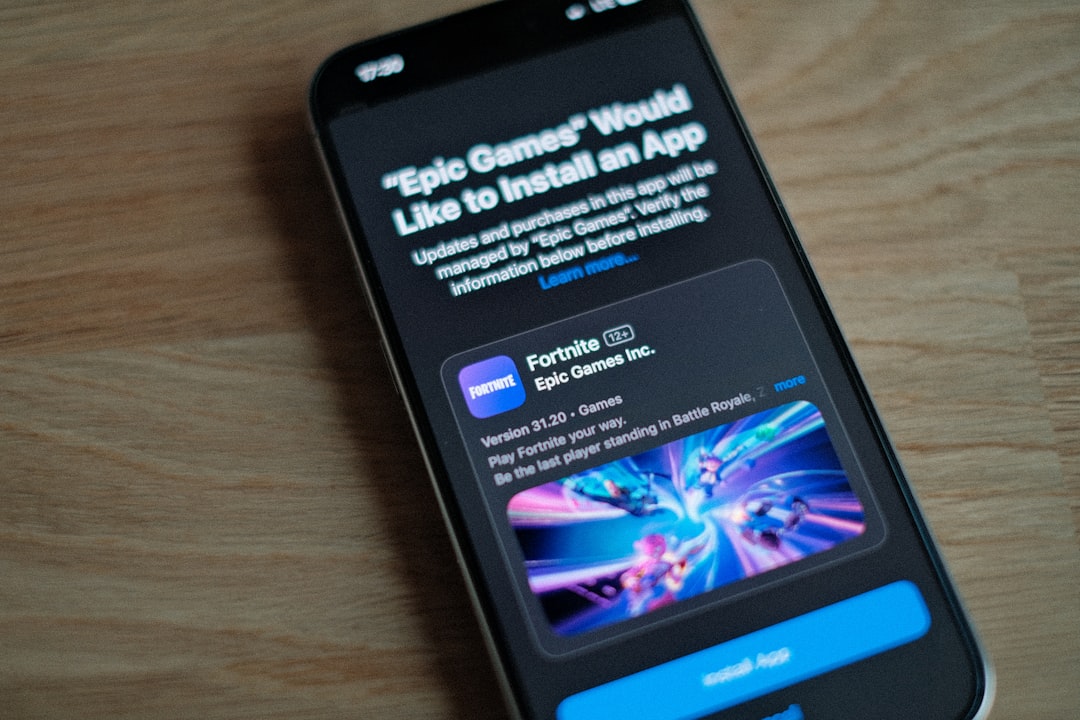
Fortnite is usually all fun. You jump from the Battle Bus. You grab loot. You build, sprint, slide, and panic. Then, out of nowhere, the game says Error Code ESP-DIST-001. Rude, right? Do not worry. This error looks scarier than it usually is.
TLDR: Error Code ESP-DIST-001 on Fortnite usually means the game is having trouble connecting to Epic Games services. It can happen because of server issues, internet problems, damaged game files, or launcher trouble. Most players can fix it by restarting Fortnite, checking Epic server status, updating the game, or verifying game files. It is usually not a ban or a serious account problem.
What Does Error Code ESP-DIST-001 Mean?
ESP-DIST-001 is a Fortnite connection or distribution error. That sounds very technical. So let’s make it simple.
Fortnite needs to talk to Epic Games servers. It needs to check your account. It needs to load updates. It needs to confirm the game files are correct. It also needs to connect you to the right services.
When that little chat between your device and Epic’s servers fails, Fortnite may show ESP-DIST-001.
Think of it like this. Fortnite is knocking on Epic’s front door. Epic does not answer. Or your internet drops the message. Or the doorbell is broken. So Fortnite gets confused and shows the error.
That is the basic idea.
The good news? This is usually fixable. You probably do not need to throw your controller into a pillow. Yet.
Is ESP-DIST-001 a Ban?
No, in most cases, ESP-DIST-001 is not a ban.
A ban message usually looks different. Fortnite will clearly tell you that your account is blocked, suspended, or banned. ESP-DIST-001 is more about the game failing to connect or load properly.
So breathe. Your skins are probably safe. Peely is not packing his bags.
Common Causes of Error Code ESP-DIST-001
There are several reasons this error can appear. Some are on your side. Some are on Epic’s side. Some are just weird little tech goblins.
- Epic Games servers are down. Fortnite cannot connect if the servers are having a bad day.
- Your internet is unstable. Lag, packet loss, or weak Wi-Fi can cause connection errors.
- The game needs an update. Fortnite changes often. Very often. Like, “blink and there is a patch” often.
- The Epic Games Launcher is acting up. This mostly affects PC players.
- Game files are damaged. A missing or broken file can stop Fortnite from starting correctly.
- Your DNS settings are not helping. DNS is like the internet’s phone book. Sometimes it gets slow or messy.
- A firewall or antivirus is blocking Fortnite. Security software can sometimes be too protective.
- Your system clock is wrong. A wrong date or time can confuse login services.
- You are using a VPN or proxy. Fortnite may not like the route your connection is taking.
First Step: Check Fortnite Server Status
Before you start changing settings, check if the problem is even yours.
If Epic’s servers are down, there is nothing magical you can do. You can restart your router 47 times. You can stare at the loading screen. You can whisper kind words to your console. It will not matter.
Check the official Epic Games server status page. You can also check Fortnite’s official social channels. If many players are complaining at once, the servers may be in trouble.
If the servers are down, wait. Grab a snack. Touch grass for seven minutes. Come back later.
Restart Fortnite
Yes, this is the classic fix. Yes, it sounds boring. Yes, it works more often than it should.
Close Fortnite fully. Do not just minimize it. Shut it down. Then open it again.
On PC, also close the Epic Games Launcher. Make sure it is not hiding in the system tray. Then reopen it.
On console, quit the game from the home screen. Then launch it again.
This clears small glitches. It gives Fortnite a fresh start. Sometimes that is all it needs.
Restart Your Device
If restarting the game does not help, restart your device.
This works for PC, PlayStation, Xbox, Nintendo Switch, and mobile devices. A full restart clears memory. It closes stuck background tasks. It also refreshes your network connection.
Do not use sleep mode. Do not use rest mode. Turn the device off. Wait a few seconds. Then turn it back on.
Simple. Clean. Effective.
Restart Your Router
Your router is the small box that runs your home internet. It also enjoys causing drama.
To restart it:
- Unplug the router from power.
- Wait about 30 seconds.
- Plug it back in.
- Wait until the lights look normal.
- Try Fortnite again.
This can fix weak connections, stuck routing, and strange network hiccups.
If you are on Wi-Fi, try moving closer to the router. If possible, use a wired Ethernet connection. Fortnite loves stable internet. It does not love mystery Wi-Fi from three rooms away.

Update Fortnite
Fortnite must be up to date. If your game version is old, it may fail to connect. This can lead to errors like ESP-DIST-001.
Most platforms update Fortnite automatically. But sometimes updates get paused. Sometimes storage is full. Sometimes the system just says, “Nah.”
Check for updates manually.
- PC: Open Epic Games Launcher. Go to Library. Check Fortnite for updates.
- PlayStation: Highlight Fortnite. Press the options button. Choose check for update.
- Xbox: Open My games and apps. Check updates.
- Switch: Press plus on Fortnite. Choose software update.
After updating, restart the game.
Update the Epic Games Launcher
If you play on PC, the launcher matters. Fortnite runs through the Epic Games Launcher. If the launcher is outdated or broken, Fortnite can complain.
Close the launcher. Reopen it. It should update itself if needed.
If it keeps acting strange, restart your PC. Then try again.
You can also run the launcher as administrator:
- Right-click the Epic Games Launcher shortcut.
- Choose Run as administrator.
- Launch Fortnite.
This can help if Windows permissions are blocking something quiet in the background.
Verify Fortnite Game Files on PC
Damaged game files can cause many Fortnite errors. This includes launch errors and connection errors.
On PC, you can verify the files. This checks the game. If something is broken, the launcher tries to fix it.
- Open the Epic Games Launcher.
- Go to your Library.
- Find Fortnite.
- Click the three dots near the game.
- Select Manage.
- Click Verify.
This may take a little while. Be patient. Let it finish. Do not close it halfway through.
After it is done, launch Fortnite again.
Clear the Epic Games Launcher Web Cache
The launcher keeps cache files. Cache is temporary data. It helps apps load faster. But sometimes cache becomes messy. Messy cache can cause weird errors.
To clear the Epic Games Launcher web cache on Windows:
- Close the Epic Games Launcher completely.
- Press Windows + R.
- Type %localappdata% and press Enter.
- Open the EpicGamesLauncher folder.
- Open the Saved folder.
- Delete folders named webcache, webcache_4147, or similar.
- Restart your PC.
- Open the launcher again.
Do not worry. These files are temporary. The launcher will create fresh ones.
Check Your Date and Time Settings
This one sounds silly. It is not.
Online games use secure connections. If your system clock is wrong, login and server checks can fail. Fortnite may not trust the connection.
Set your date and time to automatic.
- Windows: Go to Settings, then Time and Language. Turn on automatic time.
- Console: Open system settings. Set time and date automatically if possible.
- Mobile: Use network-provided time.
Then restart Fortnite.
Try a Different DNS
DNS helps your device find websites and game servers. If your DNS is slow or broken, Fortnite may fail to connect.
You can try public DNS servers. Two common options are:
- Google DNS: 8.8.8.8 and 8.8.4.4
- Cloudflare DNS: 1.1.1.1 and 1.0.0.1
Changing DNS is safe for most users. But write down your old settings first. That way you can change them back if needed.
If you are not comfortable changing network settings, skip this step. Ask someone techy. Preferably someone who does not say “just reinstall Windows” every five minutes.
Turn Off VPNs and Proxies
VPNs can be useful. They can also confuse games.
If you are using a VPN, turn it off. Then try Fortnite again. The same goes for proxy tools or unusual network apps.
Fortnite may block or dislike some connection routes. A VPN can also add delay. More delay means more chances for errors.
Check Firewall and Antivirus Settings
Your firewall protects your device. Your antivirus protects your files. Great. We love that.
But sometimes they block Fortnite or the Epic Games Launcher by mistake.
Make sure these apps are allowed through your firewall:
- Fortnite
- Epic Games Launcher
- Easy Anti-Cheat
- BattlEye, if used by your installation
Do not turn off security forever. That is not smart. Instead, add Fortnite and Epic as allowed apps.
If you test by turning antivirus off, do it only for a short time. Turn it back on after testing.
Fixes for Console Players
If you play Fortnite on PlayStation, Xbox, or Switch, you cannot verify files like on PC. But you still have good options.
- Restart the console fully.
- Check for system updates.
- Check for Fortnite updates.
- Restart your router.
- Try a wired connection if possible.
- Clear saved cache by fully powering off the console.
- Reinstall Fortnite if nothing else works.
Reinstalling is the big hammer. Use it near the end. Fortnite is large. Your download may take a while. Prepare snacks.
Fixes for Mobile Players
Fortnite on mobile can also show connection problems. The fixes are simple.
- Restart the app.
- Restart your phone or tablet.
- Switch from mobile data to Wi-Fi, or the other way around.
- Check for app updates.
- Make sure your device has enough free storage.
- Turn off VPN apps.
If your connection is weak, move to a better spot. Fortnite does not enjoy one bar of signal. Nobody does.
When Should You Reinstall Fortnite?
Reinstall Fortnite only after easier fixes fail.
Try restarting first. Check servers. Update the game. Verify files on PC. Clear the launcher cache. Check your internet.
If the error still appears, reinstalling can help. It gives you a clean copy of the game. It removes broken files. It also resets many local issues.
Before reinstalling, make sure your account is connected to Epic Games. Your skins, V-Bucks, and progress are tied to your account. They are not usually stored only on your device.
When to Contact Epic Games Support
Sometimes the error will not go away. If you have tried everything, contact Epic Games Support.
Before you do, gather useful details:
- Your platform, such as PC, Xbox, PlayStation, Switch, or mobile.
- The exact error code: ESP-DIST-001.
- When the error appears.
- What fixes you already tried.
- A screenshot of the error.
This helps support understand the problem faster. It also stops them from telling you to restart your router if you already did that six times.
Quick Fix Checklist
Want the fastest path? Try this checklist in order.
- Check Epic Games server status.
- Restart Fortnite.
- Restart your device.
- Restart your router.
- Update Fortnite.
- Update the Epic Games Launcher.
- Verify game files on PC.
- Clear launcher web cache on PC.
- Turn off VPN or proxy tools.
- Check firewall and antivirus permissions.
- Try a different DNS.
- Reinstall Fortnite if needed.
Final Thoughts
Error Code ESP-DIST-001 on Fortnite is annoying. It can stop you before the match even starts. That is not fun. Nobody wants to lose before landing at their favorite drop spot.
But the error is usually not a disaster. It normally means Fortnite cannot connect correctly to Epic’s services. The cause may be servers, internet, updates, cache, or game files.
Start with the easy fixes. Check server status. Restart things. Update the game. Then move to deeper fixes if needed.
With a little luck, you will be back on the Battle Bus soon. Maybe you will even get a Victory Royale. Or maybe you will land, grab a banana, and get chased by someone with a shotgun. That part is between you and Fortnite.