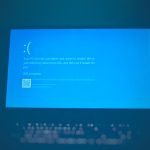
The TFLA0029 error in The Finals is one of the most frustrating issues players encounter when trying to launch or connect to the game’s servers. It often appears without warning, preventing matchmaking or blocking access entirely. While the error can seem vague, it usually stems from identifiable causes such as server instability, corrupted files, or network conflicts. Understanding the root of the problem is the first step toward resolving it quickly and effectively.
TL;DR: The TFLA0029 error in The Finals is typically caused by server outages, corrupted game files, network inconsistencies, or authentication issues. Start by checking server status, then verify game files and reset your network. Updating drivers and disabling VPNs or firewalls can also help. In most cases, the error is fixable without advanced technical intervention.
What Is the TFLA0029 Error in The Finals?
The TFLA0029 error is a connection or authentication-related issue that disrupts communication between your game client and the official servers. When this error appears, players may experience:
- Failure to connect to matchmaking
- Infinite loading screens
- Forced disconnection during startup
- Error messages preventing login
Because The Finals is heavily reliant on stable online connectivity, even minor interruptions between your device and the servers can trigger this error.
Main Causes of the TFLA0029 Error
1. Server-Side Issues
The most common cause is server instability or scheduled maintenance. If Embark Studios is performing updates or experiencing unexpected downtime, players may encounter TFLA0029 regardless of their system health.
How to confirm:
- Check official social media channels
- Visit community forums
- Review third-party server monitoring websites
If the issue is server-related, there is nothing you can do except wait for the developers to resolve it.
2. Corrupted or Missing Game Files
Game files may become corrupted after incomplete updates, interrupted downloads, or system crashes. Even a single damaged file can prevent successful authentication with the server.
Steam and other platforms provide built-in verification tools, which compare your files against official versions and repair discrepancies automatically.
3. Network Configuration Problems
Unstable Wi-Fi connections, strict NAT types, or DNS issues can break communication between your system and the game’s servers.
Common network triggers include:
- Using public or shared networks
- Outdated router firmware
- ISP routing issues
- Improper port forwarding settings
4. Firewall or Antivirus Blocking
Security software may mistakenly identify The Finals as suspicious and block its internet access. This is especially common after updates, when executable files change.
5. Outdated Drivers or Operating System
Graphics drivers and network adapters play an important role in maintaining stable sessions. Outdated drivers can cause handshake failures between your client and online services.
Working Fixes for TFLA0029 Error
1. Check Server Status First
Before adjusting your system, confirm that servers are online. This step prevents unnecessary troubleshooting.
Visit:
- Official The Finals social pages
- Steam community discussions
- Downdetector websites
If other players report identical issues, the problem is most likely external.
2. Verify Game Files
If you are playing via Steam:
- Open Steam Library
- Right-click The Finals
- Select Properties
- Navigate to Installed Files
- Click Verify integrity of game files
This process may take several minutes but frequently resolves corrupted file errors.
3. Restart Router and Flush DNS
Network refresh procedures are surprisingly effective.
Basic router reset:
- Turn off router and modem
- Wait 60 seconds
- Power them back on
Flush DNS (Windows):
- Open Command Prompt as Administrator
- Type ipconfig /flushdns
- Press Enter
This clears outdated IP address data that may interfere with server communication.
4. Disable VPN and Proxy Services
While VPNs can improve privacy, they often interfere with gaming servers by altering routing paths or triggering security filters.
If you are using:
- VPN software
- Proxy servers
- Custom DNS tools
Temporarily disable them and attempt to relaunch the game.
5. Allow The Finals Through Firewall
Manually whitelist the game:
- Open Windows Security
- Go to Firewall & Network Protection
- Select Allow an app through firewall
- Add The Finals
You may also need to add exceptions in third-party antivirus programs.
6. Update Network and Graphics Drivers
Outdated drivers can create compatibility conflicts after major game patches.
To update:
- Visit official Nvidia, AMD, or Intel websites
- Download latest GPU drivers
- Update network adapter drivers via Device Manager

7. Change DNS Servers
If your ISP’s DNS servers are slow or unstable, switching to a public DNS can help.
Recommended DNS options:
- Google DNS: 8.8.8.8 and 8.8.4.4
- Cloudflare DNS: 1.1.1.1 and 1.0.0.1
This can improve routing speed and reduce authentication timeouts.
8. Reinstall the Game (Last Resort)
If all else fails, a complete reinstall may eliminate deeply corrupted files or broken configurations.
Before reinstalling:
- Ensure save data is cloud-synced
- Restart your PC
- Free sufficient disk space
Advanced Troubleshooting (If Error Persists)
If the standard fixes fail, more advanced steps may be necessary.
Check NAT Type
Strict NAT types can block multiplayer connectivity. Ideally, you want:
- Open NAT
- Or at minimum, Moderate NAT
You may need to enable UPnP in your router settings.
Port Forwarding
Some games require specific ports to be open. Visit official support documentation for port numbers relevant to The Finals.
Contact ISP
In rare cases, the problem may involve ISP routing restrictions or broken regional nodes. If multiple games produce similar connection errors, contact your provider.
When to Contact Official Support
You should contact Embark Studios support if:
- The error persists across multiple networks
- You have already reinstalled the game
- No server outages are reported
Provide the following information:
- Screenshots of the error
- Your platform and system specifications
- Steps already taken
- Region and ISP details
A structured support ticket increases the likelihood of a fast resolution.
Preventing the TFLA0029 Error in the Future
While you cannot control server outages, you can reduce the likelihood of recurrence by:
- Keeping drivers updated
- Maintaining stable wired internet connections
- Avoiding frequent force-closing during updates
- Restarting your router periodically
- Whitelisting the game permanently in your firewall
Pro tip: Using a wired Ethernet connection instead of Wi-Fi significantly improves stability in competitive multiplayer games.
Final Thoughts
The TFLA0029 error in The Finals is disruptive but rarely permanent. In most cases, the issue stems from routine server maintenance, corrupted files, or everyday network inconsistencies. By following a systematic troubleshooting approach—starting from server checks and moving toward network configuration—you can usually restore functionality within minutes.
Patience and structured diagnostics are key. Rather than applying random fixes, move through the steps logically. Doing so not only resolves the TFLA0029 error efficiently but also strengthens your overall system stability for future gaming sessions.
Reliable connectivity is the backbone of competitive online gaming. Taking time to properly configure your system ensures you spend less time troubleshooting—and more time winning.