
There’s nothing more frustrating than opening your MacBook, seeing that it’s fully charged, and discovering that it simply won’t turn on. No chime, no Apple logo, no sign of life—just a black screen staring back at you. Fortunately, this issue is more common than you might think, and in many cases, it can be fixed without a trip to the repair shop. Whether the problem is software-related, caused by power management glitches, or tied to hardware faults, there are several practical steps you can take to bring your MacBook back to life.
TL;DR: If your MacBook is charged but won’t turn on, start with the basics—check the display, perform a forced restart, and disconnect all accessories. Next, reset the SMC and NVRAM, and try booting in Safe Mode or Recovery Mode. If none of these steps work, the issue could be hardware-related, and professional service may be required.
1. Make Sure It’s Really Not Turning On
Before assuming the worst, confirm whether the MacBook is truly not powering on—or if it’s just the display that isn’t working.
- Listen for sounds. Do you hear the startup chime (on older models) or fan noise?
- Check the Caps Lock key. Does the light turn on when pressed?
- Look closely at the screen. Shine a flashlight at an angle—can you faintly see your desktop?
If there are signs of activity but no visible image, the problem may be a faulty display or backlight rather than a power issue.

2. Perform a Forced Restart
Sometimes your MacBook may appear completely unresponsive because it’s frozen. A forced restart can interrupt whatever process is causing the issue.
- Press and hold the Power button for about 10–15 seconds.
- Release the button and wait a few seconds.
- Press the Power button again normally.
This simple step resolves many startup problems, especially after software crashes or failed sleep cycles.
3. Disconnect All Accessories
External devices can sometimes interfere with startup. USB drives, external monitors, adapters, and even hubs may cause boot issues if one of them is malfunctioning.
- Unplug all cables and accessories.
- Disconnect power adapters temporarily.
- Remove SD cards or USB devices.
Once everything is unplugged, try turning your MacBook on again. If it boots normally, reconnect accessories one at a time to identify the culprit.
4. Check the Power Source (Even If It’s Charged)
Your MacBook might show signs of being charged, but power-related issues can still prevent startup.
- Try a different charging cable or adapter.
- Test another wall outlet.
- If you’re using a USB-C hub for charging, plug the charger directly into the MacBook.
In some cases, the battery may be deeply discharged or improperly calibrated, even if it previously showed charge. Leave it plugged in for at least 15–30 minutes before trying again.
5. Reset the SMC (System Management Controller)
The SMC controls power-related functions such as battery management, sleep, and thermal settings. If it becomes corrupted, your MacBook may refuse to turn on.
For Intel-based MacBooks with non-removable batteries:
- Shut down the Mac (if possible).
- Press and hold Shift + Control + Option (left side) and the Power button.
- Hold for 10 seconds.
- Release all keys and press Power again.
For Apple Silicon (M1, M2, M3) Macs: Simply shut down the device and wait 30 seconds before turning it back on. The SMC resets automatically.
This step resolves many mysterious “won’t turn on” situations, especially if they occurred after overheating or power fluctuations.
6. Reset NVRAM or PRAM
NVRAM stores system settings like display resolution, startup disk selection, and sound volume. Corrupted settings may prevent proper booting.
To reset NVRAM on Intel Macs:
- Turn off your Mac.
- Turn it on and immediately press and hold Option + Command + P + R.
- Hold the keys for about 20 seconds.
- Release and allow normal startup.
On Apple Silicon Macs, NVRAM resets automatically when necessary.
7. Try Safe Mode
Safe Mode starts your Mac with only essential system software. If your MacBook turns on in Safe Mode, a software issue or login item may be causing the problem.
For Intel Macs:
- Turn it on and immediately hold the Shift key.
For Apple Silicon:
- Press and hold the Power button until startup options appear.
- Select your startup disk.
- Hold Shift and click “Continue in Safe Mode.”
If your Mac works in Safe Mode but not normally, recent software installations or updates could be the source of the issue.
8. Use macOS Recovery Mode
Recovery Mode allows you to repair disks or reinstall macOS if system files are damaged.
To enter Recovery Mode:
- Intel Macs: Restart and hold Command + R.
- Apple Silicon Macs: Press and hold the Power button until you see “Loading startup options.”
From here, you can:
- Use Disk Utility to check and repair your drive.
- Reinstall macOS without erasing your data.
If Disk Utility finds errors and repairs them successfully, restart and check if the issue is resolved.
9. Check for Signs of Hardware Damage
If none of the above steps work, hardware failure may be the cause. Common signs include:
- No fan noise or internal sound at all.
- Liquid damage or corrosion.
- A swollen battery causing the trackpad or bottom case to bulge.
- Burning smell or excessive heat before failure.
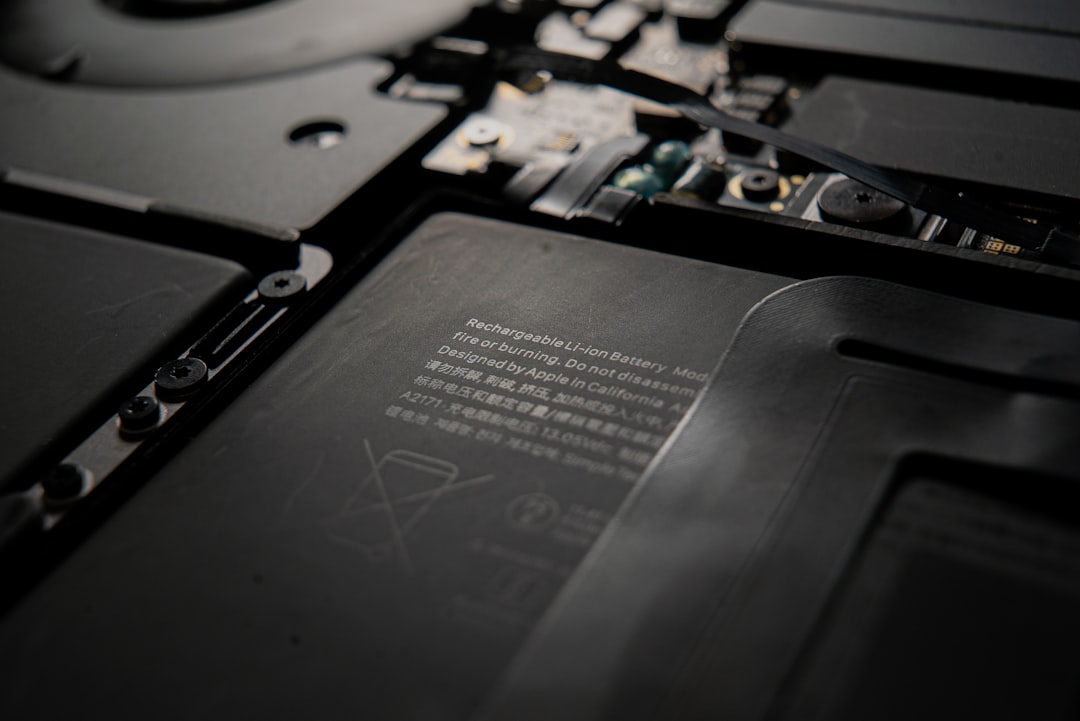
In these cases, internal components like the logic board, battery, or power management chip may be defective. Professional repair is usually required.
10. Check the Display Separately
Sometimes your MacBook is actually on—but the screen is not. To confirm:
- Connect your MacBook to an external monitor.
- Press the brightness keys repeatedly.
- Attempt to adjust display settings blindly if you suspect an external-only configuration.
If the external monitor works, your internal display or flex cable may need replacement.
11. Let the Battery Fully Drain (Last Resort)
If your MacBook is stuck in a strange powered state, letting the battery fully drain can sometimes reset internal circuits.
- Leave it unplugged until you’re certain the battery is fully drained (may take a day or more).
- Plug it back in.
- Wait 30 minutes and try powering it on.
This method isn’t guaranteed—but it has helped users experiencing deep firmware lockups.
When to Seek Professional Help
If your MacBook still won’t turn on after trying all software and reset methods, it’s time to consult a technician. Professional diagnostics are especially important if:
- The MacBook was exposed to water.
- It was dropped shortly before the issue.
- You notice battery swelling.
- The machine is under warranty or AppleCare.
Delaying repair in cases of hardware damage can sometimes make the issue worse.
How to Prevent This Problem in the Future
While not all power failures are preventable, you can reduce your risk with a few good habits:
- Keep macOS updated.
- Avoid using low-quality charging cables.
- Protect your device from overheating.
- Shut down occasionally instead of always using sleep mode.
- Back up your data regularly using Time Machine.
Regular maintenance and mindful charging habits go a long way in keeping your MacBook healthy.
Final Thoughts
A MacBook that’s charged but won’t turn on can feel alarming—but in most cases, the fix is surprisingly simple. From forced restarts and SMC resets to Safe Mode and Recovery tools, macOS offers multiple built-in ways to troubleshoot startup issues. Only after ruling out software and power management fixes should you assume a hardware failure.
The key is to work methodically, starting with the simplest solutions. With patience and the right steps, you can often bring your MacBook back from the brink—no expensive repair required.