intoLive is the better pick for most iPhone users who want polished Live Photo wallpapers, while VideoToLive is better for quick, simple conversions with fewer editing choices. A Live Photo works well as a wallpaper because Apple’s format captures motion around a still image, traditionally 1.5 seconds before and after the shot [source: Apple]. For a lock screen, that short motion burst is usually enough. The goal is not to save a movie as wallpaper, but to turn a clip into a Live Photo that iOS can treat like a photo with motion.
TLDR: For a clean iPhone wallpaper, intoLive wins when a user wants trimming, cropping, filters, speed control, canvas tools, and a better cover frame. VideoToLive is the faster option when the job is only “take this video and make it a Live Photo.” For example, a 12-second beach clip can be trimmed into a 3-second lock screen animation in about a minute with either app, but intoLive gives more control over the final frame. A user making 10 wallpapers a month will save time with VideoToLive, but will likely get better-looking results from intoLive.
What a Live Photo wallpaper actually needs
An iPhone wallpaper does not need a long clip. It needs a short motion moment with a strong still frame. That matters more than the app logo on the export screen.
The best source videos usually have:
- Vertical framing, ideally 9:16.
- A steady subject, such as waves, neon lights, clouds, pets, or a moving skyline.
- Very little camera shake, unless the shake is meant to feel raw.
- A clear first or final frame for the lock screen still image.
- No important audio, since wallpaper motion does not play sound.
Honestly, it feels like many users waste time trying to convert a full 30-second video. That rarely helps. The strongest Live Photo wallpapers often come from 2 to 4 seconds of clean movement.
How to turn a video into a Live Photo on iPhone
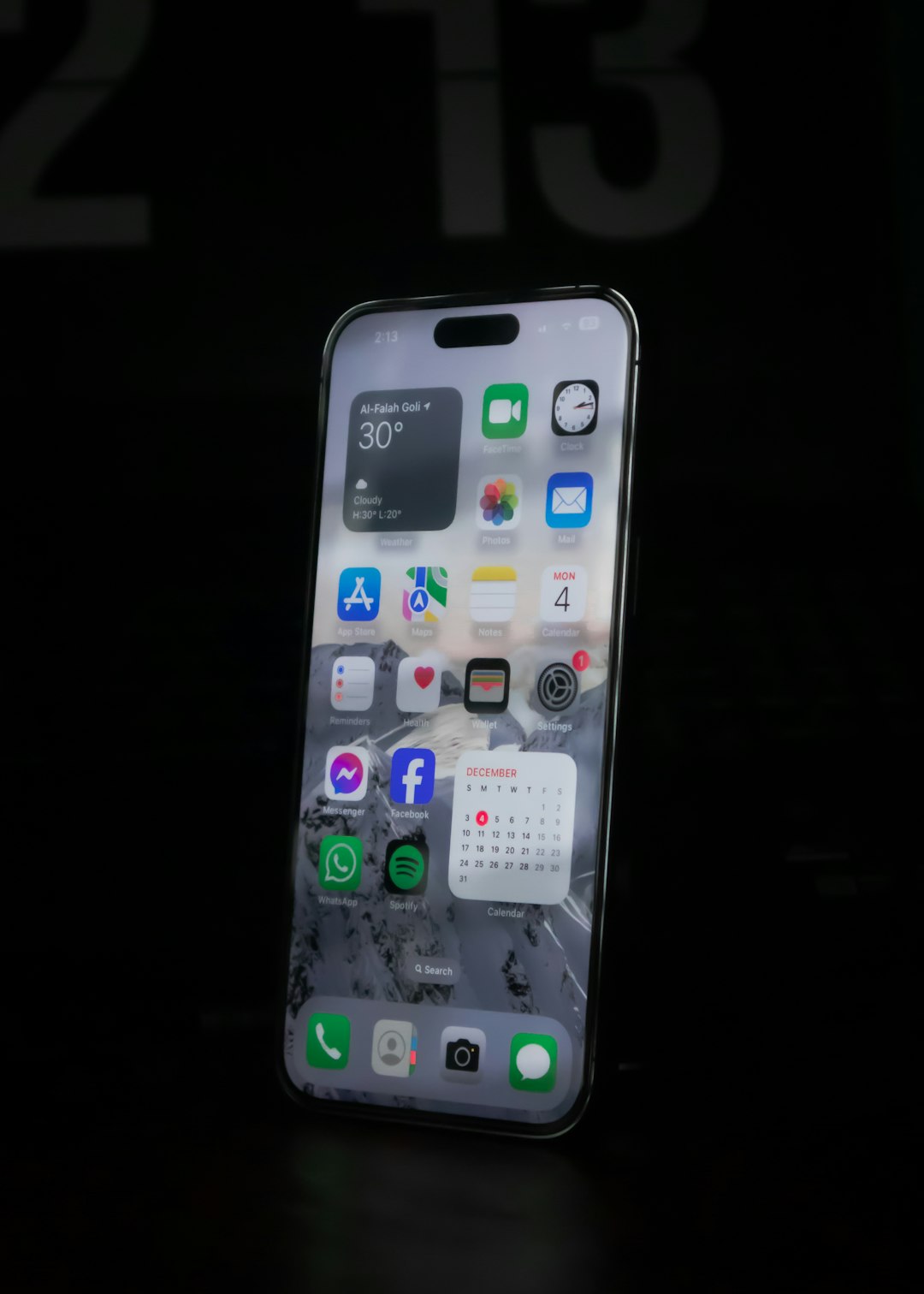
The process is almost the same in both apps. The small differences show up in editing quality and speed.
- Choose a video. A user should start with a vertical clip from the Photos app. Horizontal footage can work, but it often needs cropping.
- Open intoLive or VideoToLive. The app will ask for photo library access. Limited access is safer if only one clip is needed.
- Select the clip. Pick the exact video that should become the wallpaper.
- Trim the motion. Short clips look better. A 2 or 3-second section is usually enough.
- Crop for the lock screen. The subject should sit away from the clock and widgets.
- Set the key photo. This is the still frame shown before the motion plays.
- Export as a Live Photo. The app saves the result to Photos.
- Set it as wallpaper. In iOS, the user can open the Live Photo, use wallpaper settings, and enable the Live Photo option if available.
The catch is that iOS behavior changes by version. Some iPhones play Live Photo wallpapers from the lock screen, while older setups may require a press or may not support the same effect. If the Live Photo button is missing in wallpaper settings, the problem may be iOS support, Low Power Mode, or the file export.
intoLive: best for control and cleaner wallpapers
intoLive is the stronger editor. It is made for turning videos, GIFs, bursts, and photo sequences into Live Photos. For wallpaper users, its best feature is control. It lets users trim, crop, adjust the canvas, change the background, set the key photo, and fine-tune the look before export.
Its biggest advantage is the key photo. A Live Photo wallpaper has to look good while still. The motion only appears for a moment, but the still image sits on screen all day. intoLive makes it easier to choose the exact frame that looks sharp behind the clock.
It also helps when a video is not perfectly vertical. A user can fit the clip into a wallpaper frame, blur the background, or crop tightly. These tools matter for TikTok clips, travel reels, concert videos, and pet videos shot in a rush.
The annoying part is the upgrade pressure. Some features may sit behind a paid plan, depending on the app version and region. Export limits can also get irritating when a user is testing several clips. Waiting through repeated prompts adds maybe 10 to 20 seconds per attempt, which sounds tiny until the fifth failed wallpaper.
intoLive works best for:
- Users who want a polished lock screen.
- Clips that need cropping or background fill.
- Videos where the best still frame is not the first frame.
- Social media clips that need resizing.
- Users who make wallpapers often.
VideoToLive: best for speed and simple jobs
VideoToLive is usually the simpler choice. Its main appeal is direct conversion. A user picks a clip, trims it, and exports a Live Photo. That is the whole point.
This makes it good for people who do not want a full editing screen. If the video is already vertical and already short, VideoToLive can feel faster than intoLive. There are fewer choices, fewer panels, and less fiddling.
That simplicity can also be the problem. If the clip needs careful framing, a better cover image, or style changes, VideoToLive may feel limited. It is fine for a clean 3-second shot of rain on a window. It is less ideal for a horizontal vacation clip where the subject keeps drifting behind the iPhone clock.
VideoToLive works best for:
- Fast one-off conversions.
- Already vertical videos.
- Users who dislike editing tools.
- Simple motion wallpapers, such as fire, water, clouds, or lights.
- Testing whether a video works as a Live Photo at all.
intoLive vs. VideoToLive: quick comparison
- Ease of use: VideoToLive is simpler. intoLive is still easy, but has more buttons.
- Editing tools: intoLive wins. It offers stronger trimming, layout, and visual tools.
- Wallpaper quality: intoLive often produces a better final look because the key frame and crop are easier to refine.
- Speed: VideoToLive wins when the source clip is already perfect.
- Best for beginners: VideoToLive, if no edits are needed. intoLive, if the user wants fewer ugly surprises.
- Best for frequent use: intoLive, because repeated wallpaper creation needs better control.
If the user only wants to convert one short video of falling snow, VideoToLive is enough. If the user wants a wallpaper that looks intentional, intoLive is the safer pick.
Tips for better iPhone Live Photo wallpapers
- Keep the subject low or centered. The clock and widgets cover the top area.
- Use slow movement. Fast motion can look messy in a short loop.
- Avoid text-heavy videos. Cropping can cut words in awkward places.
- Pick a sharp key photo. The still frame matters most.
- Do not rely on sound. Wallpaper playback is visual only.
- Test on the lock screen. A clip that looks great in Photos may look cramped behind widgets.
Which app should most people choose?
Most iPhone users should choose intoLive first. It gives more control over the crop, key photo, and final wallpaper look. That matters because a Live Photo wallpaper is still a wallpaper first. The motion is a bonus.
VideoToLive is still useful. It is the better tool when speed matters and the video already fits the lock screen. It is also good for users who get annoyed by too many editing options.
The practical rule is simple: use VideoToLive for quick conversion, and use intoLive for better-looking iPhone wallpapers.
FAQ
Can any iPhone video be turned into a Live Photo?
Most normal videos can be converted with apps like intoLive or VideoToLive. Very long, damaged, or unsupported files may fail. Short vertical videos work best.
Does a Live Photo wallpaper play sound?
No. The wallpaper motion does not play audio. A clip should make sense visually without sound.
Why is the Live Photo not moving on the lock screen?
The iPhone may not support that wallpaper behavior, the iOS version may handle Live Photos differently, Low Power Mode may interfere, or the Live Photo option may be turned off in wallpaper settings.
Which app gives better quality, intoLive or VideoToLive?
intoLive usually gives better-looking results because it has stronger editing tools. VideoToLive can match it when the original video is already trimmed, vertical, and clean.
What length is best for a Live Photo wallpaper?
Around 2 to 4 seconds is usually best. Longer clips often get trimmed and rarely look better on the lock screen.
Is intoLive worth paying for?
It can be worth it for users who create wallpapers often or need better crop, canvas, and export options. For a single simple conversion, the free features or VideoToLive may be enough.