Put your WordPress site into maintenance mode before you update a theme. That is the safest way to stop customers from seeing broken layouts, missing buttons, white screens, or half-loaded checkout pages. WordPress powers 43.4% of all websites, so even small update mistakes can affect real sales and support requests [source: W3Techs].
TLDR: Use the Maintenance plugin to show a clean temporary page while you update your theme, test the site, and fix problems. For example, if a store gets 2,000 visits per day, even a 20-minute broken update window could expose around 28 visitors to a bad experience. A simple maintenance page can say, “We are making improvements and will be back in 15 minutes.” That is far better than letting customers find a broken cart or stretched homepage.
Why a Maintenance Page Matters During Theme Updates
A theme update can change more than colors and fonts. It can affect templates, menus, widgets, checkout layouts, product grids, custom code, and page builder sections. Sometimes everything works. Sometimes one small CSS or PHP change makes the site look unfinished.
It drives me crazy that a normal-looking update button can hide a mess that takes 30 seconds to trigger and 30 minutes to clean up. Customers do not care that the issue came from a theme update. They only see a site that looks unsafe.
A maintenance mode page gives you a short, controlled pause. Visitors see a clear message instead of errors. Logged-in admins can still work behind the scenes.
Use the Maintenance Plugin
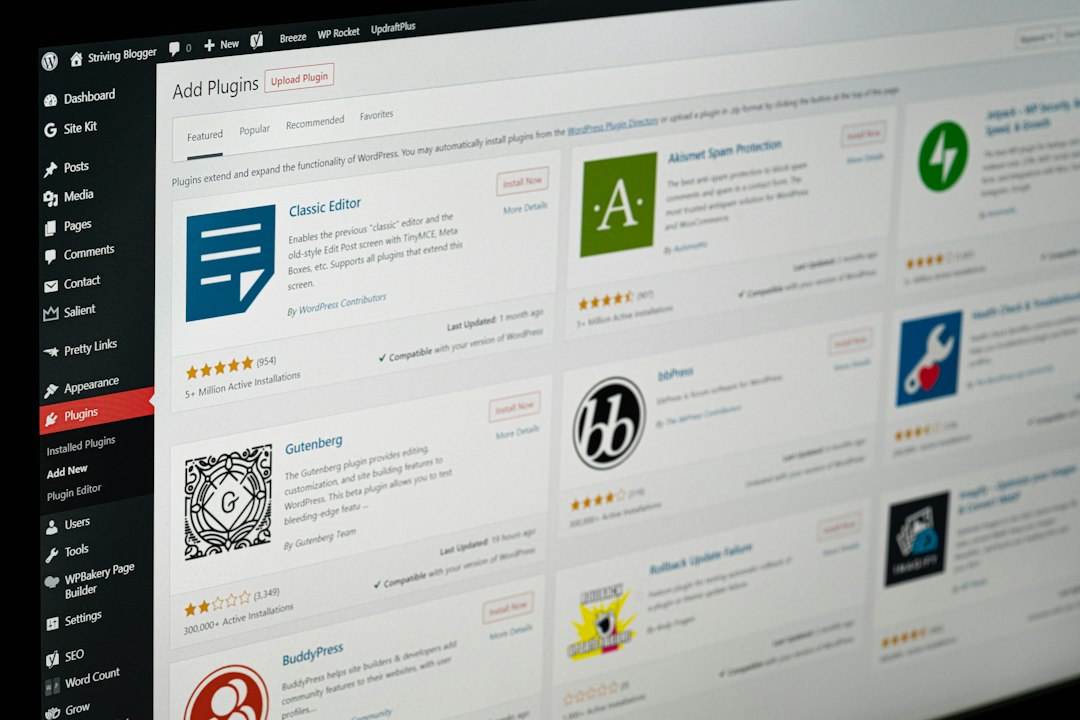
The Maintenance plugin is made for this exact job. It lets you place a simple temporary page over your WordPress site while updates are in progress. You can use it before updating a theme, plugin, or WordPress core.
You can install it from the official WordPress plugin directory here: Maintenance plugin. You can also review the related service site here: WP Maintenance Mode.
The goal is not to impress visitors with a flashy page. The goal is to keep trust. A plain, branded message is enough if it is honest and clear.
What Your Maintenance Page Should Say
Keep the message short. Do not blame software. Do not write a long apology. Tell people what is happening and when they should come back.
A good message could be:
“We are updating our website to improve your experience. The site will be back shortly. Please check again in about 15 minutes.”
If you run an online store, add a support email. If you take bookings, add a phone number. If your site has business hours, mention them.
- Use your logo so visitors know they are in the right place.
- Add a short time estimate if you can meet it.
- Include contact details for urgent customer needs.
- Avoid vague copy like “Something went wrong.”
- Do not overpromise if you are not sure how long testing will take.
How to Set It Up Before Updating a Theme
Follow a simple order. Do not update first and panic later.
- Back up your site. Save both files and database.
- Install and activate the Maintenance plugin.
- Create your maintenance page. Add logo, message, contact details, and simple styling.
- Turn on maintenance mode. Check it in a private browser window.
- Update the theme. Do not leave the page while the update runs.
- Test key pages. Check homepage, menu, contact forms, shop, cart, checkout, and login pages.
- Fix visible issues. Clear cache if styles look stale.
- Turn maintenance mode off. Test again as a normal visitor.
This process may feel like extra work. Honestly, it feels like wasting time until the day it saves you from a broken checkout during a busy sales hour.
What to Test Before You Go Live Again
Do not just refresh the homepage and call it done. Theme updates often break smaller areas first.
Check these pages and features:
- Homepage hero section and main call to action
- Mobile menu
- Header and footer links
- Product pages or service pages
- Cart and checkout flow
- Forms and confirmation messages
- Blog posts and featured images
- Account login pages
Use your phone too. Many theme issues are mobile-only. A button may look fine on desktop and vanish on a smaller screen.
Free or PRO: Which Setup Makes Sense?
For many small sites, the free Maintenance plugin is enough. You can show a clean page, add basic branding, and block public access while you update.
A PRO setup makes sense if you need more control. That may include stronger design options, lead capture, access rules, or better fit with a larger brand process. If your site makes money every hour, these features can be worth it.
The serious point is simple. Do not wait until the site is broken to think about customer experience. Set up the maintenance page before the update window starts.
Best Timing for Theme Updates
Run theme updates during low-traffic periods. For many sites, that means early morning or late evening. For stores, check your sales history first. Avoid lunch breaks, campaign launches, and payday peaks.
Tell your team before you start. If customer support gets a message, they should know the site is being updated. Keep the update window short. If testing starts taking too long, leave maintenance mode on until the site is safe.
The Safe Habit
A broken WordPress website can make a good business look careless. A maintenance page prevents that. It gives you privacy to update, test, and fix the theme without putting customers in the middle of the problem.
Before every theme update, turn on Maintenance, test your site, then reopen it only when the key pages work. It is a small habit, but it protects trust, sales, and support time.