A Samsung monitor displaying the “Check Signal Cable” message can be frustrating, especially when you need your computer for work or important tasks. This warning typically means the monitor is powered on but is not receiving a proper video signal from your computer or another connected device. While the message may seem alarming, in most cases the issue can be resolved quickly with systematic troubleshooting.
TLDR: The “Check Signal Cable” error usually appears when your Samsung monitor is not receiving a video signal from the connected device. Common causes include loose or damaged cables, incorrect input source selection, outdated drivers, or hardware failure. Start by checking physical connections and input settings, then move on to testing cables, updating drivers, and inspecting hardware. Most cases can be fixed without professional repair.
Understanding the “Check Signal Cable” Error
The “Check Signal Cable” message means the monitor is functioning, but it cannot detect a video signal from the connected source. This is different from a monitor that won’t power on at all. Here, the screen works, but the communication between the monitor and your computer has failed.
Common causes include:
- Loose or disconnected cables
- Damaged HDMI, DisplayPort, DVI, or VGA cables
- Incorrect input source selected on the monitor
- Faulty graphics card or motherboard port
- Outdated or corrupted graphics drivers
- Power supply problems
Before assuming hardware failure, follow the structured steps below.
1. Check All Cable Connections
This is the most common and easiest fix.
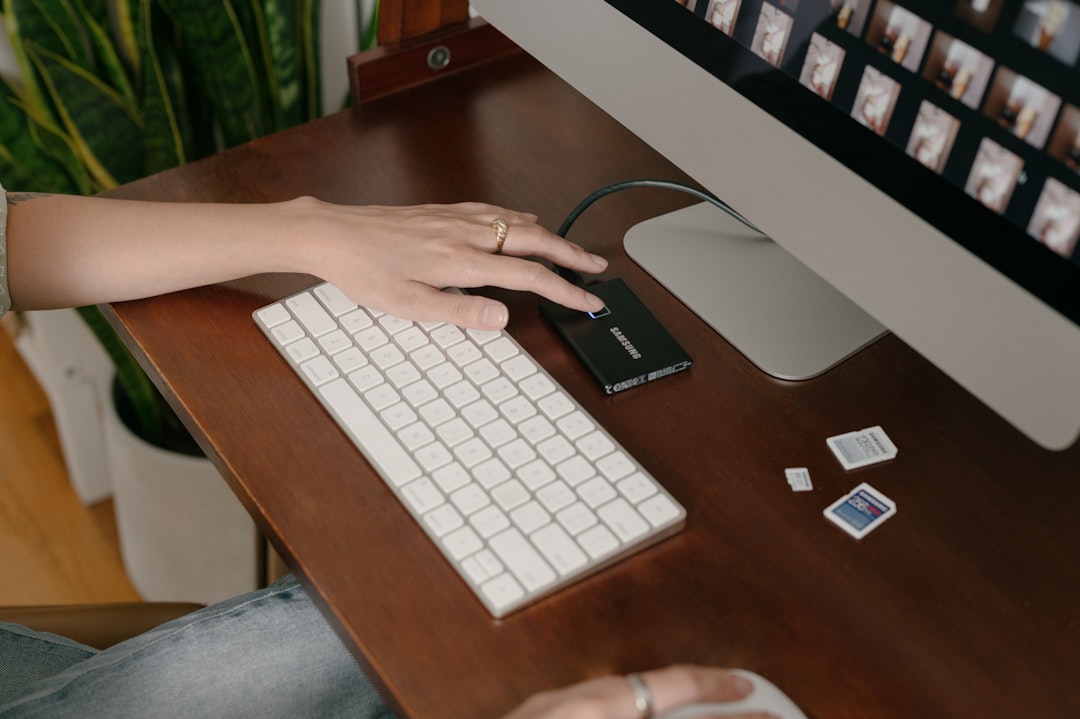
Begin by inspecting both ends of your video cable:
- Unplug the cable from the monitor and the computer.
- Reconnect it firmly until it clicks into place.
- If using HDMI or DisplayPort, ensure there is no debris in the ports.
- Check for bent pins if using VGA or DVI connectors.
Important: Even if the cable looks secure, reseating it often resolves signal issues. Slight movement during cleaning or desk adjustments can loosen the connection.
2. Select the Correct Input Source
Samsung monitors often support multiple input sources such as HDMI, DisplayPort, and VGA. If the monitor is set to the wrong input, it may display the cable error even if everything is properly connected.
To fix this:
- Press the Menu button on your monitor.
- Navigate to Source or Input.
- Select the correct input (for example HDMI 1 or DisplayPort).
If unsure, switch between available options until the display appears.
3. Test With Another Cable
Cables wear out over time, especially if frequently bent or moved. A cable can appear fine externally while being internally damaged.
Try using:
- A different HDMI or DisplayPort cable
- A certified high speed cable for modern resolutions
- A shorter cable to reduce signal interference
Cable Comparison Chart
| Connection Type | Image Quality | Common Issues | Best Use Case |
|---|---|---|---|
| HDMI | High | Loose fit, bent internal pins | General home and office use |
| DisplayPort | Very High | Latch damage, port wear | Gaming and high refresh rate monitors |
| DVI | Medium to High | Bent pins, no audio support | Older desktop setups |
| VGA | Low | Signal interference, outdated | Legacy systems |
If replacing the cable resolves the issue, discard the faulty one to avoid future confusion.
4. Restart and Power Cycle Your Devices
Temporary software glitches can interrupt signal detection.
Follow these steps:
- Turn off the computer.
- Turn off the monitor.
- Unplug both from power for at least 60 seconds.
- Reconnect and power on the monitor first, then the computer.
This process clears temporary hardware memory states and often restores proper communication.
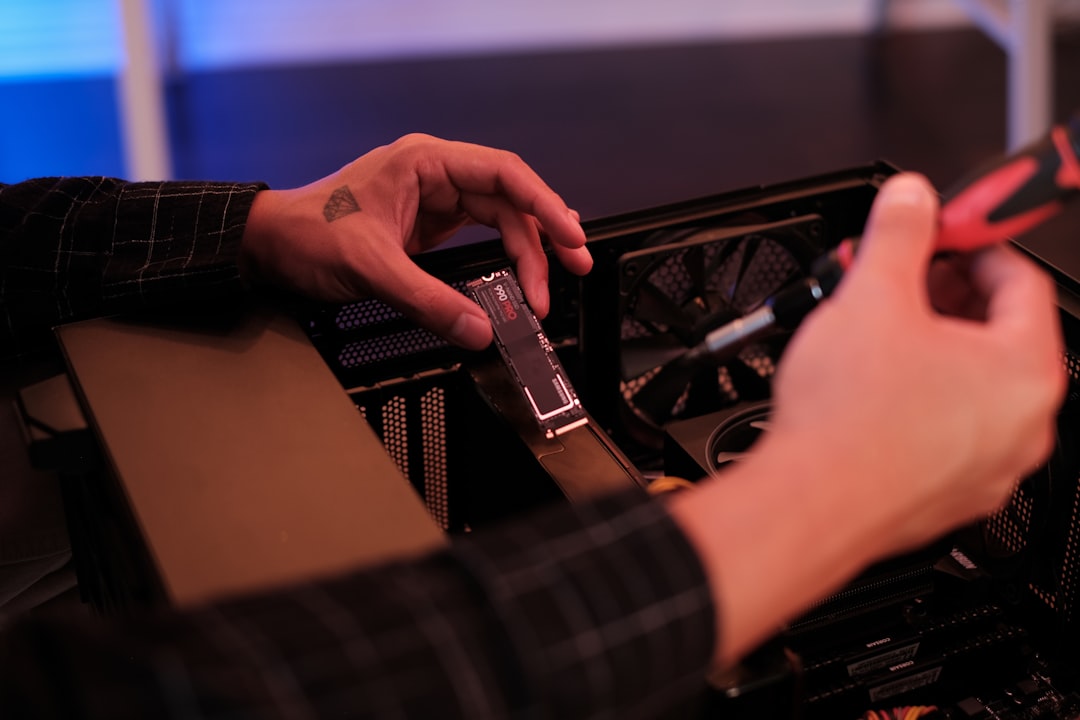
5. Inspect the Graphics Card
If you are using a desktop computer with a dedicated graphics card, the connection between the graphics card and motherboard may be unstable.
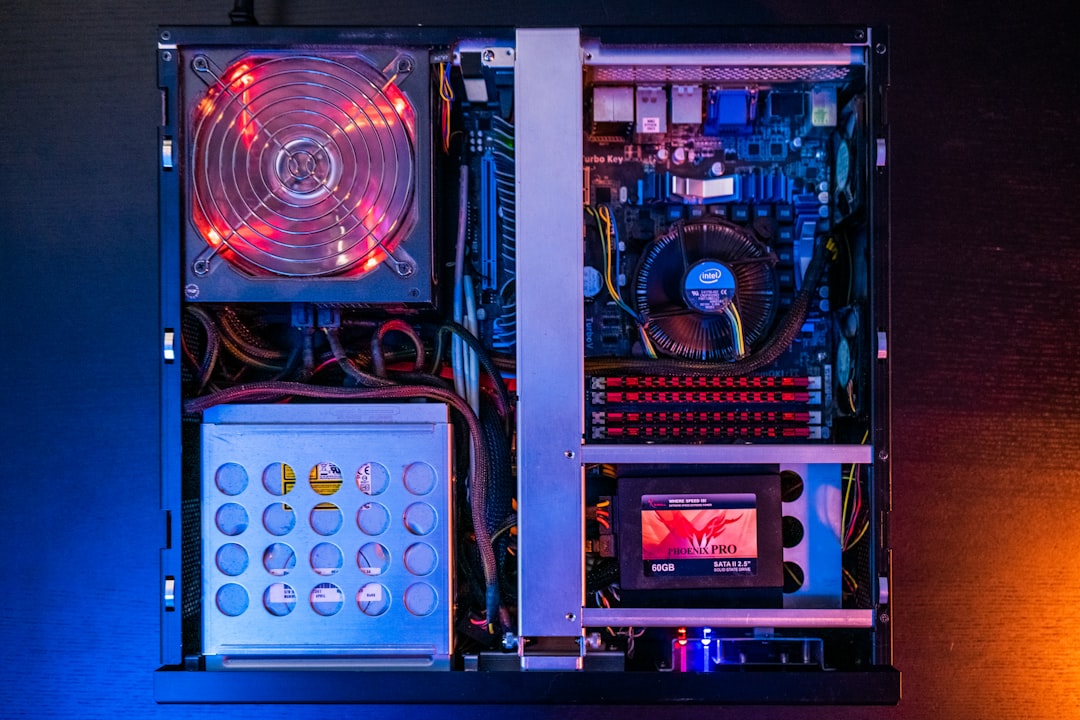
Proceed carefully:
- Turn off and unplug your PC.
- Open the case.
- Ensure the graphics card is firmly seated in the PCIe slot.
- Check that all required power connectors are attached.
If available, test your monitor using the motherboard video output. If that works, the dedicated graphics card may be faulty.
6. Update or Reinstall Graphics Drivers
Outdated or corrupted graphics drivers can prevent proper signal output.
To update drivers:
- Boot into Safe Mode if necessary.
- Open Device Manager.
- Locate Display Adapters.
- Right click your graphics card and select Update Driver.
For best results, download the latest driver directly from the manufacturer’s official website (NVIDIA, AMD, or Intel).
If problems persist, uninstall the driver completely and perform a clean reinstall.
7. Test With Another Monitor or Device
To isolate the cause, determine whether the problem is with the monitor or the computer.
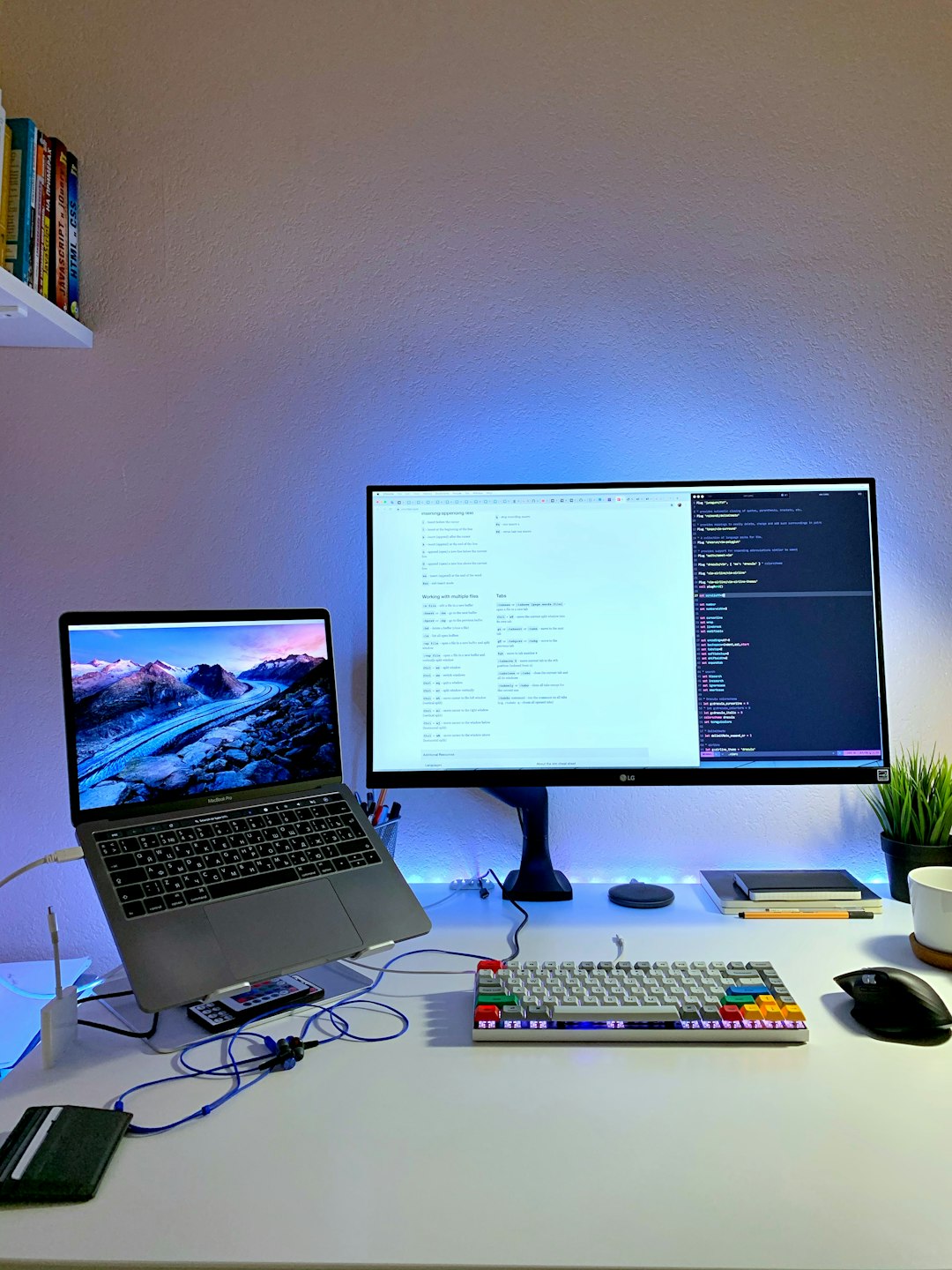
Try one of these:
- Connect your Samsung monitor to another computer.
- Connect your current computer to a different monitor.
If the Samsung monitor works on another device, the issue lies with your computer. If it fails on multiple systems, the monitor may require professional inspection.
8. Check Monitor Settings and Perform a Factory Reset
Incorrect monitor settings can also trigger signal detection issues.
Access the monitor menu and:
- Enable Auto Source Detection if available.
- Perform a Factory Reset.
This will restore all video and input settings to default configuration.
9. Examine Power Supply Stability
Unstable power can disrupt video signal processing.
Check for:
- Loose power cables
- Defective power strips
- Voltage fluctuations
If possible, plug the monitor directly into a wall outlet to eliminate power strip interference.
When to Seek Professional Repair
If you have tried:
- Multiple cables
- Different ports
- Another computer
- Driver updates
and the problem continues, the issue may be internal hardware failure such as:
- A damaged monitor input board
- A failing power board
- A defective GPU
In such cases, contact Samsung customer support or a certified technician. Attempting internal monitor repairs without proper training can cause additional damage.
Preventing Future Signal Cable Errors
You can reduce the likelihood of encountering this issue again by following best practices:
- Use high quality certified cables
- Avoid sharply bending cables
- Keep ports clean and dust free
- Secure cables to prevent tension
- Keep graphics drivers updated
Proper cable management not only prevents signal issues but also extends the life of your equipment.
Final Thoughts
The Samsung “Check Signal Cable” error is typically a straightforward communication problem between the monitor and its video source. In the majority of cases, the solution involves checking connections, replacing cables, or selecting the correct input. Only rarely does the issue indicate serious hardware failure.
By following a systematic troubleshooting process and eliminating potential causes one by one, you can identify the problem efficiently and restore normal display functionality. Taking preventive measures also ensures long-term reliability and minimizes downtime in the future.