Saved passwords can be extremely useful when you need to sign in quickly, move to a new phone, or recover access to an account you have not used in a while. On Android, many saved passwords are stored through your Google Account and managed by Google Password Manager, which works across Android, Chrome, and many apps. This article explains how to find, view, copy, edit, and protect saved passwords on Android in a safe and responsible way.
TLDR: You can find saved passwords on Android by opening Settings > Google > Password Manager, or by visiting passwords.google.com while signed in to your Google Account. To view a password, you will usually need to confirm your identity with your screen lock, fingerprint, face unlock, or Google Account credentials. You can also check saved passwords in the Chrome app under Settings > Password Manager. Only access passwords that belong to you, and protect your device with strong security settings.
Understanding where Android saves passwords
Android does not store every password in one single visible folder. Instead, saved passwords are usually handled by a password manager. For many users, that password manager is Google Password Manager, which is linked to the Google Account used on the phone.
When you sign in to a website or supported app, Android or Chrome may ask if you want to save the password. If you agree, the login details can be synced to your Google Account. This means you may be able to access the same saved passwords from another Android device, from Chrome on a computer, or directly through Google’s password website.
Important: Password visibility is protected. Android will normally require you to verify your identity before showing a saved password. This is intentional and helps prevent unauthorized access if someone else briefly uses your phone.
Method 1: Find saved passwords through Android Settings
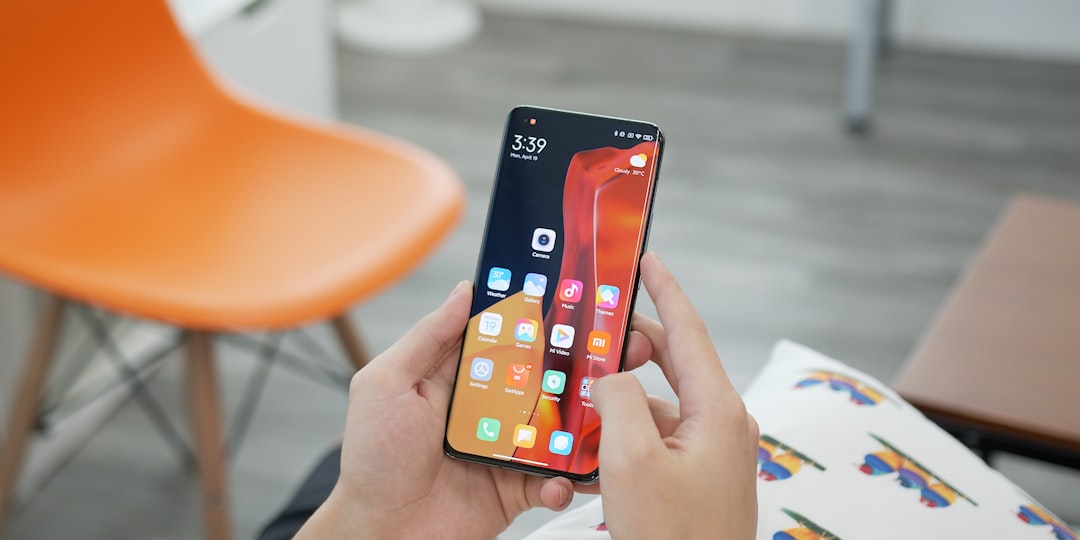
The most direct method for many Android phones is through the Google settings menu. The exact names of menus may vary slightly depending on your phone manufacturer and Android version, but the process is generally similar.
- Open the Settings app on your Android phone.
- Scroll down and tap Google.
- Tap Manage your Google Account or look for Password Manager.
- If you see Password Manager, tap it.
- Browse the list of saved websites and apps.
- Tap the account you want to check.
- Verify your identity using your screen lock, fingerprint, face unlock, or other security method.
- Tap the eye icon to view the password, or use the copy button if available.
If your phone does not show Password Manager directly under Google settings, try opening:
- Settings > Google > Autofill > Autofill with Google > Google Password Manager
- Settings > Passwords, passkeys and accounts
- Settings > Security and privacy > More security settings
Because Android manufacturers customize settings screens, Samsung, Pixel, OnePlus, Xiaomi, Motorola, and other devices may organize these options differently. If you cannot find the page manually, use the search bar at the top of the Settings app and type Password Manager.
Method 2: Find saved passwords in Chrome on Android
If you use Google Chrome on your Android phone, you can also access saved passwords from inside the browser. This is especially helpful for passwords saved while browsing websites.
- Open the Chrome app.
- Tap the three dots in the top-right corner.
- Tap Settings.
- Select Password Manager.
- Choose the website or app account you want to inspect.
- Confirm your identity when prompted.
- View, copy, edit, or delete the saved password.
Chrome may show passwords saved to your Google Account as well as passwords saved locally, depending on your sync settings. If the list looks incomplete, make sure you are signed in to the correct Google Account and that sync is enabled.
To check Chrome sync, open Chrome, tap the three dots, go to Settings, and look at the account shown at the top. If it is not the account you normally use, switch accounts or sign in with the correct one.
Method 3: Use passwords.google.com
You can also access Google Password Manager through a browser by going to passwords.google.com. This works on Android, on a computer, and on other devices where you can safely sign in to your Google Account.
On Android, open Chrome or another trusted browser, go to passwords.google.com, and sign in if prompted. You will see a list of saved logins associated with that Google Account. Select an entry, verify your identity, and then view or manage the saved details.
This method is useful if your Android settings menu is difficult to navigate or if you want to check your saved passwords from a desktop computer. However, you should only use this method on devices you trust. Avoid signing in to your Google Account on public computers or shared devices unless absolutely necessary.
How to view, copy, edit, or delete a saved password
Once you open a saved password entry in Google Password Manager, you will usually see the website or app name, the username, and a hidden password field. After verifying your identity, you can perform several actions:
- View: Tap the eye icon to reveal the password temporarily.
- Copy: Use the copy icon to copy the username or password to your clipboard.
- Edit: Update the username or password if the saved information is outdated.
- Delete: Remove a saved password that you no longer want stored.
Be careful when copying passwords. Anything copied to the clipboard may be briefly accessible to some apps or visible if you paste it accidentally. After copying a password, paste it only where needed and avoid leaving sensitive information exposed.
Why you might not see a password
If you cannot find a password you expected to see, there are several common explanations. First, the password may have been saved under a different Google Account. Many people have more than one account on their Android phone, such as a personal account and a work account.
Second, the password may have been saved in another password manager. Some Android users rely on Samsung Pass, Microsoft Authenticator, 1Password, Bitwarden, Dashlane, LastPass, or another credential manager. In that case, the password will not necessarily appear in Google Password Manager.
Third, you may have declined the save prompt when you originally signed in. Google can only show passwords that were actually saved. If a password was never saved, Google Password Manager cannot recover it.
Finally, sync may be turned off. If you saved a password on another device, it may not appear on your Android phone until Chrome or Google Account sync is enabled and functioning properly.
Check which account is being used
Before assuming a password is missing, confirm that you are using the correct Google Account. On Android, open Settings > Google and look at the account shown. In Chrome, open Settings and check the profile at the top of the screen.
If you have multiple accounts, switch between them and check Password Manager again. Passwords are tied to the account that saved them. A login saved under one account will not automatically appear under another.
Run a password checkup
Google Password Manager includes a useful feature called Password Checkup. It can warn you about saved passwords that may be weak, reused, or exposed in known data breaches. This is one of the most important security features available to Android users.
To use it, open Google Password Manager and look for Password Checkup or Check passwords. After verification, Google will review your saved credentials and provide recommendations.
- Compromised passwords: Change these immediately.
- Reused passwords: Replace them with unique passwords for each account.
- Weak passwords: Use longer, more complex alternatives.
A strong password should be unique, difficult to guess, and not based on personal information. Using Google Password Manager or another reputable password manager makes it easier to maintain strong passwords without memorizing every one.
Make sure Autofill is enabled
If you want Android to save and fill passwords in apps and websites, check that Google is set as your autofill service. Open Settings and search for Autofill. Then choose Autofill with Google or select Google as the preferred password service.
On newer Android versions, password, passkey, and autofill settings may be grouped under Passwords, passkeys and accounts. Once enabled, Android can suggest saved logins when you tap a username or password field in supported apps and browsers.
Protecting your saved passwords
Finding saved passwords is useful, but protecting them is more important. Your Google Account can contain access to email, banking, shopping, social media, cloud storage, and work services. Treat it as a high-value account.
- Use a strong screen lock on your Android phone.
- Turn on 2-Step Verification for your Google Account.
- Do not share your phone unlock code with people you do not fully trust.
- Keep Android, Chrome, and Google Play services updated.
- Review saved passwords regularly and delete old entries.
- Never send passwords through text message, email, or unsecured chat.
You should also review devices connected to your Google Account. Visit your Google Account security settings and check the list of signed-in devices. If you see a device you do not recognize, sign it out and change your password immediately.
What to do if you forgot your Google Account password
If you cannot access Google Password Manager because you forgot your Google Account password, use Google’s official account recovery process. Go to the Google sign-in page and choose Forgot password?. Follow the prompts carefully.
Google may ask for a recovery email, phone number, previous password, or confirmation from a device where you are already signed in. For security reasons, there is no legitimate shortcut to bypass this process. Avoid third-party tools or websites that claim they can reveal your Google password, as these are often scams or malware.
Final thoughts
To find saved passwords on Android using your Google Account, start with Settings > Google > Password Manager, check Chrome’s Password Manager, or visit passwords.google.com. These official options are the safest and most reliable ways to view and manage saved credentials.
Always remember that saved passwords are sensitive personal data. Access only your own accounts, verify that you are using the correct Google Account, and strengthen your security with a screen lock and 2-Step Verification. Used responsibly, Google Password Manager can help you recover logins, improve password hygiene, and keep your Android experience both convenient and secure.