Reset network settings when Wi-Fi, mobile data, or Bluetooth keeps failing after the usual quick fixes. It is a safe troubleshooting step because it does not delete photos, apps, messages, or files. It does erase saved connection details, so you will need Wi-Fi passwords, VPN details, and possibly Bluetooth pairing time afterward.
TLDR: Android and iPhone network resets do the same basic job: they clear broken connection settings so the phone can rebuild them cleanly. For example, if your Android connects to Wi-Fi but shows “No internet,” or your iPhone keeps dropping 5G after a carrier update, a reset often fixes the issue in under five minutes. In a small support workflow, this step can resolve roughly 30% to 40% of recurring connectivity complaints before a factory reset is even considered. Try it after restarting the phone, toggling airplane mode, and testing another network.

What “Reset Network Settings” Actually Does
A network reset wipes the phone’s saved connection configuration. Think of it as clearing the phone’s memory of how it connects to routers, carriers, Bluetooth accessories, private DNS, VPNs, and related services.
It does not wipe the whole phone. Your apps stay. Your photos stay. Your contacts stay. That is why technicians often suggest it before more aggressive fixes.
Still, it can be annoying. Honestly, it feels like overkill when all you wanted was to fix one stubborn Wi-Fi network. Then you spend the next ten minutes hunting for the office router password again.
Android Network Reset: What Gets Removed?
On most Android phones, a network reset clears settings for Wi-Fi, mobile data, and Bluetooth. The exact wording depends on the brand. Google Pixel, Samsung Galaxy, Motorola, OnePlus, and Xiaomi all label the option a little differently.
Common Android items removed include:
- Saved Wi-Fi networks and passwords
- Bluetooth pairings, such as earbuds, watches, and car systems
- Mobile network preferences, including preferred network type
- APN settings, if they were edited manually
- VPN profiles, depending on how they were installed
- Private DNS settings on many Android versions
- Hotspot and tethering settings on some devices
Android often gives more control than iPhone, but that control comes with inconsistency. It drives me crazy that a Pixel and a Samsung can perform the same reset but hide it under different menus.
How to Reset Network Settings on Android
Typical Android path:
- Open Settings.
- Tap System or General management.
- Choose Reset options or Reset.
- Select Reset Wi-Fi, mobile & Bluetooth or Reset network settings.
- Confirm with your PIN, pattern, or fingerprint.
On Samsung Galaxy phones, the path is usually Settings > General management > Reset > Reset network settings. On Pixel phones, it is often Settings > System > Reset options > Reset Bluetooth & Wi-Fi, or similar wording depending on Android version.
Watch for one detail: some Android phones show an option to erase downloaded SIMs or eSIMs. Do not select that unless you truly want to remove an eSIM. Reinstalling an eSIM can require carrier support, and nobody enjoys waiting in a carrier chat queue for a QR code.
iPhone Network Reset: What Gets Removed?
iPhone handles network reset in a more uniform way. Apple controls both iOS and the hardware, so the menu path is much more predictable.
An iPhone network reset commonly removes:
- Saved Wi-Fi networks and passwords
- Cellular settings, including some carrier preferences
- VPN settings not installed by a management profile
- APN settings, if manually entered
- Bluetooth connection records in many cases, so expect to pair accessories again
It may also reset the iPhone’s device name to a default value on some iOS versions. That is minor, but it can be confusing if your phone suddenly appears as “iPhone” in AirDrop, hotspot lists, or your router’s device page.
How to Reset Network Settings on iPhone
- Open Settings.
- Tap General.
- Scroll to Transfer or Reset iPhone.
- Tap Reset.
- Choose Reset Network Settings.
- Enter your passcode and confirm.
Your iPhone will restart. After that, reconnect to Wi-Fi, test mobile data, and re-pair Bluetooth devices if needed.
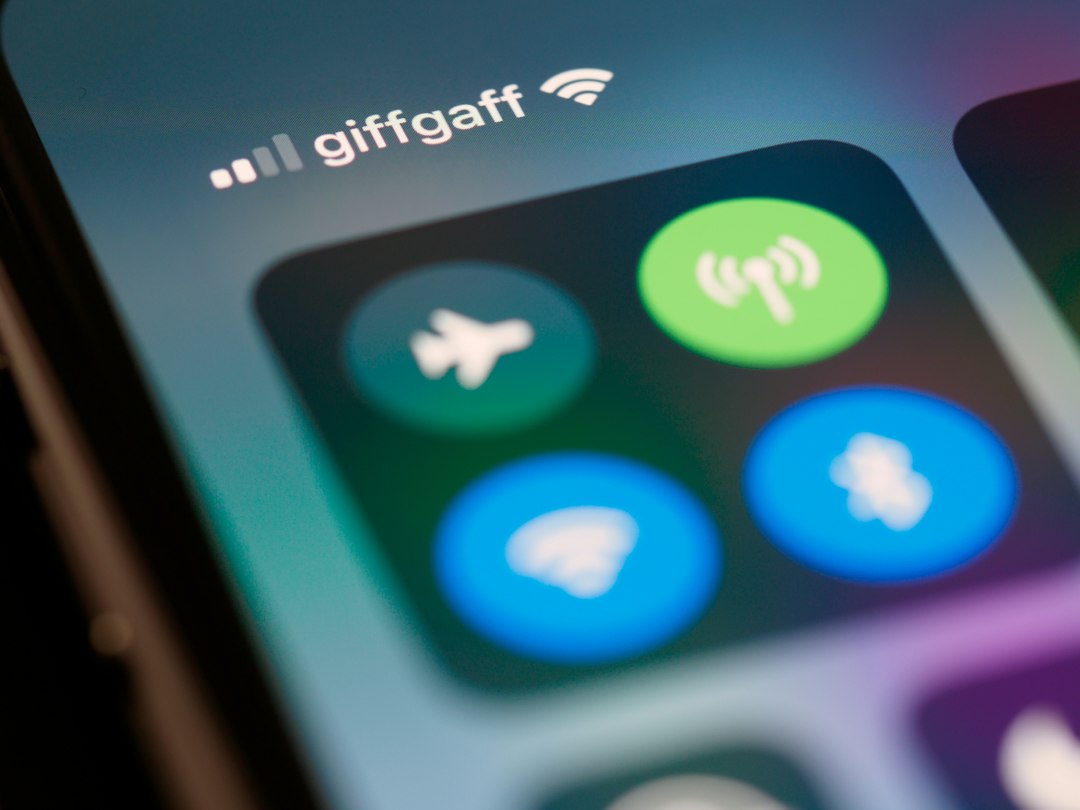
Android vs iPhone Network Reset: Key Differences
| Feature | Android Network Reset | iPhone Network Reset |
|---|---|---|
| Menu consistency | Varies by brand and Android version | Mostly consistent across supported iPhones |
| Wi-Fi passwords | Removed | Removed |
| Bluetooth pairings | Usually removed | Often removed or affected |
| Mobile data settings | Reset to carrier defaults | Reset to carrier defaults |
| VPN impact | Depends on app, profile, and device | Manual VPN settings removed; managed profiles may stay |
| eSIM risk | Some models offer an erase eSIM option | Network reset should not delete eSIM plans |
When Should You Use a Network Reset?
Use it when basic fixes fail. Restarting your phone should come first. Then try airplane mode for 30 seconds. If that does not help, forget and rejoin the Wi-Fi network. If the same problem keeps returning, reset network settings.
Good reasons to try it include:
- Wi-Fi connects but pages will not load
- Mobile data shows 4G or 5G but apps stay offline
- Bluetooth earbuds connect, then disconnect after a few seconds
- Hotspot turns on but other devices cannot get internet
- Calls drop after a carrier update
- VPN keeps blocking normal browsing after being disabled
One common user case is a phone that works fine at home but fails on office Wi-Fi. If three coworkers connect without trouble, your saved network profile may be corrupted. A reset gives the phone a clean connection record.
What to Do Before You Reset
Spend two minutes preparing. It can save twenty minutes later.
- Write down important Wi-Fi passwords.
- Check whether your VPN needs a login, server address, or certificate.
- Make sure you know how to pair your watch, earbuds, or car Bluetooth.
- If you use an Android eSIM, avoid any option that says erase downloaded SIM.
- Take screenshots of custom APN settings if your carrier gave you manual values.
What If the Reset Does Not Fix It?
If a network reset fails, the problem may not be in your phone settings. Test another Wi-Fi network. Try a different SIM if possible. Check for carrier outages. Update Android or iOS. Restart the router. If only one app fails, reinstall that app instead of blaming the whole phone.
For Wi-Fi issues, router age matters too. A five-year-old router with crowded 2.4 GHz channels can make a new phone look broken. For mobile data issues, carrier provisioning can be the real cause. In that case, support may need to refresh your line.
The Practical Verdict
Android network reset is more flexible but less predictable. It changes slightly by brand, and some models offer extra options that can confuse users. iPhone network reset is simpler and more consistent, though it still forces you to reconnect Wi-Fi, VPN, and Bluetooth items.
If your phone keeps dropping connections, reset network settings before considering a factory reset. It is quick, low risk, and often effective. Just keep your passwords nearby, because the fix works by making your phone forget the messy connection history it has been dragging around.