
Most builders should pair HWiNFO64 with OCCT first, then use motherboard software or BIOS for actual voltage and clock changes. AMD Ryzen Master is useful, but it is not the only way to monitor thermals, test stability, or tune performance. AMD describes Ryzen Master as a tool for personalized control and real-time performance tuning [source: AMD], yet many users still prefer lighter tools, better graphs, or deeper stress testing.
TLDR: The best Ryzen Master alternative setup is HWiNFO64 for monitoring, OCCT for stress testing, and BIOS or motherboard software for overclocking. For example, a Ryzen 5 7600 user might run a 10-minute OCCT CPU test, watch HWiNFO64, then lower voltage by 0.05 V if peak temperature sits near 90°C. A simple tuning pass can cut temperatures by 5–10°C on some systems while keeping similar gaming performance. No single app does everything perfectly, which is annoying, but this mix is safer than guessing.
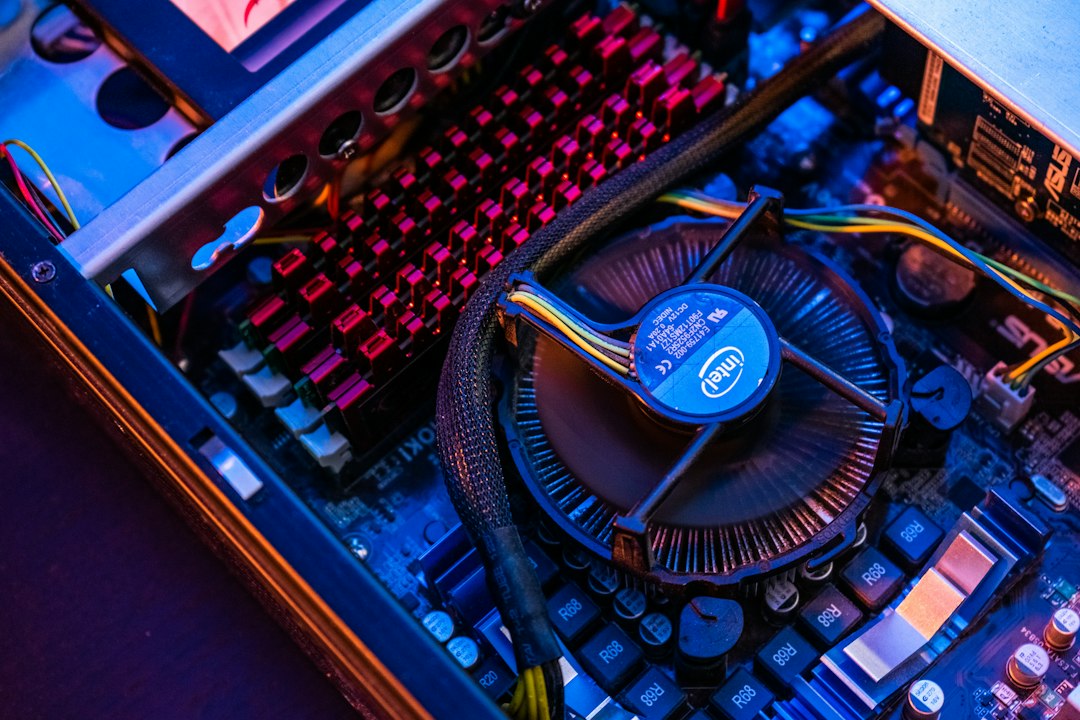
1. HWiNFO64
HWiNFO64 is one of the best choices for users who care about clean sensor data. It shows CPU temperature, core clocks, voltage, package power, fan speed, and thermal throttling signs. It does not overclock the CPU by itself, but that is also why many builders trust it.
The main benefit is accuracy. A user can leave it open during gaming, rendering, or stress testing and check the real peak values later. That beats staring at a dashboard and hoping nothing spikes. Honestly, it feels like some tuning tools hide the details people need most. HWiNFO64 does not do that.
- Best for: detailed monitoring
- Good match with: OCCT, AIDA64, BIOS tuning
- Weak point: no direct overclock controls
2. OCCT
OCCT is a strong pick for stability testing. It can stress the CPU, memory, power supply, and GPU. For Ryzen users, the CPU and memory tests are the most useful after changing clock speeds, Curve Optimizer settings, or voltage.
It also tracks errors, temperatures, and power draw during a test. That matters because an overclock can look fine on the desktop and still fail after six minutes under real load. It drives users crazy when a system passes one benchmark and then crashes in a Discord call. OCCT helps catch that kind of problem early.
- Best for: finding unstable settings
- Good match with: HWiNFO64
- Weak point: harsh tests can push temperatures very high
3. AIDA64 Extreme
AIDA64 Extreme is useful for users who want monitoring, reports, benchmarks, and stress tests in one place. It is not as direct as Ryzen Master for changing CPU settings, but it gives a clear view of system behavior.
The sensor panel is a big reason people like it. Users can build a custom panel for temperatures, clocks, RAM use, and cooling data. It works well on a second monitor or small internal display. The stress test is also helpful for checking thermals after a cooler swap or fan curve change.

- Best for: system reports and long monitoring sessions
- Good match with: custom sensor panels
- Weak point: paid software after trial use
4. CPU-Z
CPU-Z is simple, fast, and still useful. It shows CPU model, core voltage, multiplier, cache, motherboard, BIOS version, and memory timings. It is not a full tuning platform, but it helps confirm whether settings actually applied.
This matters more than it sounds. A user may change memory speed in BIOS, boot into Windows, and assume everything worked. CPU-Z can quickly show if RAM is running at the expected data rate or if the board dropped back to safer defaults.
- Best for: quick CPU and RAM checks
- Good match with: BIOS tuning and memory overclocking
- Weak point: limited monitoring depth
5. Motherboard Tuning Suites
Motherboard tools such as ASUS AI Suite, MSI Center, Gigabyte Control Center, and ASRock A-Tuning can change fan curves, power limits, voltages, and CPU behavior from Windows. Results vary by board model. Some are polished. Some feel bloated and slow.
These apps are useful when a user wants fan control or quick presets without rebooting. Still, serious overclocking is usually better handled in BIOS. BIOS settings apply earlier, avoid extra background services, and tend to be more reliable after updates.
- Best for: fan curves and quick presets
- Good match with: HWiNFO64 monitoring
- Weak point: vendor apps can be heavy
Which Alternative Should Be Used?
For most users, the best answer is not one tool. It is a small toolkit. HWiNFO64 watches the numbers. OCCT finds bad settings. CPU-Z confirms clocks and memory speed. AIDA64 helps with longer checks and reports. Motherboard software or BIOS handles the real tuning.
Gamers should focus on temperatures, boost clocks, and stability. Creators should care more about long all-core loads. Small form factor PC owners should focus on undervolting first, because heat builds fast in tight cases.
FAQ
Is there a full replacement for AMD Ryzen Master?
Not exactly. Ryzen Master combines monitoring and tuning for supported Ryzen CPUs. A mix of HWiNFO64, OCCT, CPU-Z, and BIOS tuning usually gives better control.
Can HWiNFO64 overclock a Ryzen CPU?
No. HWiNFO64 is for monitoring only. It is best used to confirm temperatures, voltage, clock speed, and throttling.
Is OCCT safe to use?
Yes, if temperatures are watched closely. If the CPU reaches unsafe levels or throttles hard, the test should be stopped and cooling or voltage should be checked.
Should beginners overclock in Windows or BIOS?
Beginners can test simple fan and performance modes in Windows. For lasting CPU tuning, BIOS is usually the cleaner choice.
What is the easiest tool for quick checks?
CPU-Z is the easiest for fast CPU and memory checks. For temperature checks, HWiNFO64 is better.