Manual data entry remains one of the most time-consuming administrative tasks for finance teams, operations departments, analysts, and small businesses. When useful information is trapped inside PDF invoices, bank statements, reports, order forms, or tables, employees often spend hours copying figures into spreadsheets. PDF to Excel tools help solve this problem by converting static documents into editable, sortable, and searchable spreadsheet files.
TLDR: PDF to Excel tools reduce manual data entry by extracting tables, numbers, and text from PDF files and placing them into Excel-ready formats. For example, an accounting assistant processing 150 supplier invoices per month could cut a 10-hour task down to 2 or 3 hours with batch conversion and OCR. Businesses using these tools often save time, reduce typing errors, and improve reporting speed. The best results come from choosing software that matches the document type, data volume, and accuracy requirements.
Why PDF to Excel Conversion Matters
PDFs are excellent for preserving layouts, sharing official documents, and preventing accidental edits. However, they are not ideal when employees need to analyze data, calculate totals, filter records, or combine information with other spreadsheets. A sales report in PDF format may look polished, but if its data must be compared against monthly targets, someone usually needs to move that data into Excel.
This is where PDF to Excel conversion tools become valuable. Instead of manually retyping rows and columns, the software identifies tables and exports them into spreadsheet format. In many cases, it can preserve headings, columns, rows, currencies, dates, and formulas-ready data structures.
How PDF to Excel Tools Save Time
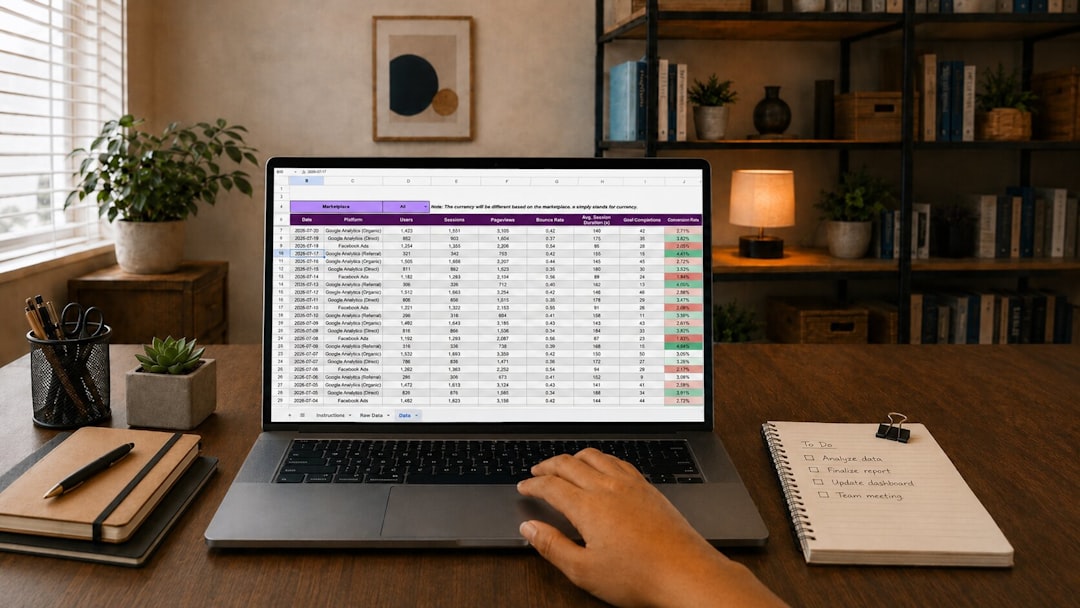
The greatest advantage of these tools is speed. A staff member may need several minutes to copy one page of financial data by hand. If a report contains 80 pages, the task can take most of a working day. A capable converter can process the same file in minutes, especially when the PDF has clear, structured text.
They also reduce repetitive work. Employees do not have to switch constantly between a PDF viewer and Excel, copy values cell by cell, or check every row for alignment. This allows teams to focus on reviewing results, analyzing trends, and making decisions instead of performing mechanical typing tasks.
- Faster processing: Large files and multiple documents can often be converted in batches.
- Fewer errors: Automated extraction reduces accidental typos, skipped rows, and misplaced decimals.
- Better productivity: Employees spend more time validating and analyzing data.
- Improved organization: Converted files can be sorted, filtered, searched, and merged with other spreadsheets.
Common Use Cases for Businesses
PDF to Excel tools are useful across many departments. In accounting, they help extract invoice details, purchase orders, expense statements, and bank transaction records. In sales, they can turn PDF price lists, lead reports, or commission statements into editable spreadsheets. In logistics, they assist with shipment records, inventory lists, delivery notes, and supplier documents.
A small retail company, for example, may receive weekly PDF stock reports from three suppliers. If each report contains 500 product lines, manual entry could take several hours. With a PDF to Excel tool, the operations manager can convert the reports, combine them in one spreadsheet, and compare stock levels in a fraction of the time.
Key Features That Make a Tool Effective
Not every converter performs equally well. Some tools are suitable for simple, text-based PDFs, while others are built for scanned documents and complex layouts. Before selecting a solution, businesses should look for features that directly support their workflow.
- OCR technology: Optical character recognition is essential for scanned PDFs, photographed documents, and files that do not contain selectable text.
- Batch conversion: This allows multiple PDFs to be processed at once, which is especially useful for invoices, statements, and reports.
- Table recognition: A strong tool should detect rows, columns, merged cells, and headers accurately.
- Export options: The ability to export to XLSX, CSV, or editable spreadsheet formats gives teams more flexibility.
- Security features: For sensitive financial or customer data, encryption, local processing, or secure cloud handling is important.
- Layout control: Some tools allow users to select specific tables or page areas for cleaner extraction.
Online Tools vs Desktop Software
Online PDF to Excel converters are convenient because they usually require no installation. They are useful for occasional conversions, quick tasks, or employees working from different devices. A user can upload a PDF, wait for processing, and download an Excel file within moments.
Desktop software, however, may be better for teams that process confidential documents or large volumes of files. Since files can be handled locally, there may be less concern about uploading sensitive information to a third-party server. Desktop tools often provide stronger batch processing, advanced OCR settings, and more control over output formatting.
Cloud-based business platforms can offer a middle ground. They may include automation, shared access, storage integration, and API support. For larger organizations, this can help connect PDF conversion with accounting software, CRM systems, or reporting dashboards.
Accuracy Still Requires Review
Although PDF to Excel tools can save major amounts of time, they are not perfect. Accuracy depends on the quality of the original PDF, the complexity of the table, the clarity of scanned text, and the language or formatting used. A clean digital PDF with standard tables may convert with excellent accuracy, while a blurry scanned document with handwritten notes may require manual correction.
For this reason, organizations should treat conversion as an automation aid rather than a complete replacement for human review. After conversion, staff should check totals, verify column alignment, confirm decimals and dates, and compare sample rows against the original PDF. This review process is still faster than typing everything manually.
Industries That Benefit Most
Several industries rely heavily on documents that arrive as PDFs. Financial services often handle statements, transaction summaries, tax documents, and audit reports. Healthcare organizations may need to extract data from billing forms, claims, or administrative reports. Real estate firms frequently work with rent rolls, property reports, lease summaries, and expense documentation.
Legal, education, logistics, manufacturing, and government offices also benefit from PDF to Excel conversion. Any organization that receives structured data in a locked or non-editable format can use these tools to improve reporting accuracy and administrative efficiency.
Tips for Getting Better Conversion Results
Businesses can improve results by preparing documents properly before conversion. High-quality PDFs produce cleaner spreadsheets. When possible, teams should use original digital PDFs rather than scanned copies. If scanning is necessary, documents should be straight, clear, well-lit, and saved at a high enough resolution for OCR to read the text accurately.
- Use clear source files: Avoid blurry scans, skewed pages, and low-resolution images.
- Convert one document type at a time: Similar layouts are easier to validate and organize.
- Check the first few conversions carefully: This helps identify formatting issues early.
- Save templates when available: Some tools can remember table areas or extraction rules.
- Protect sensitive files: Confidential financial, legal, or customer data should be handled through secure tools.
The Long-Term Value of Automation
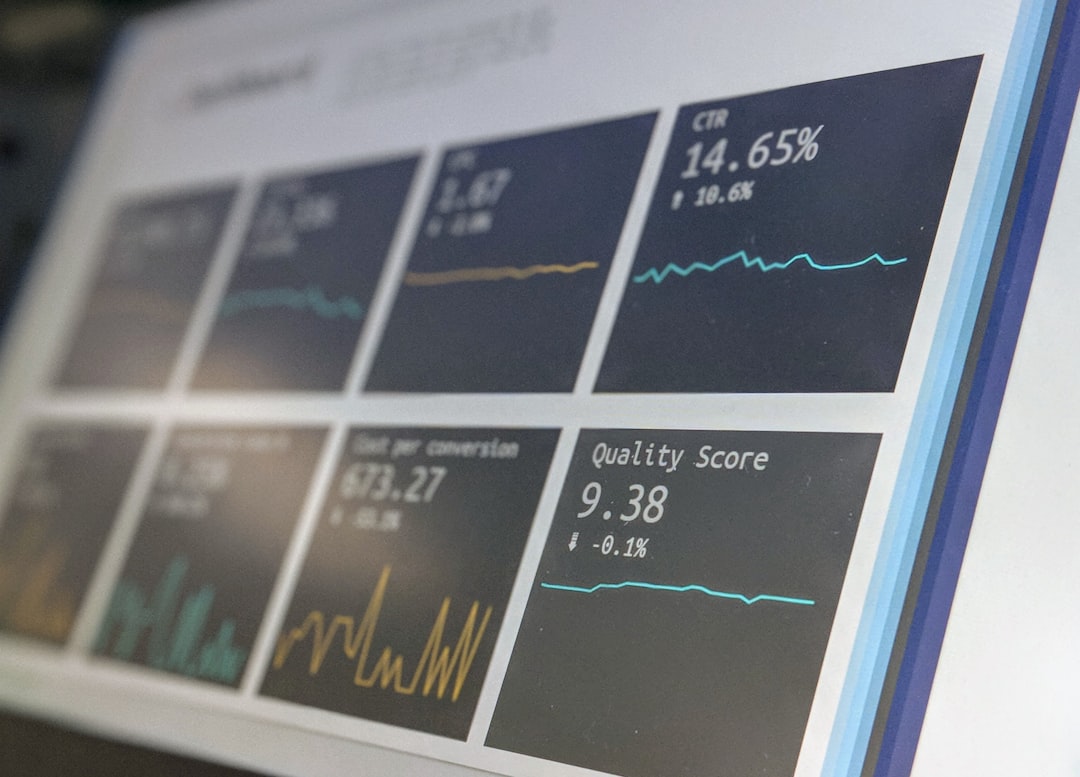
The value of PDF to Excel tools extends beyond saving a few hours. Over time, they help create more reliable workflows. Data becomes available faster, reports can be prepared sooner, and employees are less likely to feel burdened by repetitive administrative work. When spreadsheet data is extracted quickly, managers can react sooner to cash flow changes, supplier costs, inventory shortages, or customer trends.
For growing businesses, this efficiency can become a competitive advantage. A company that processes documents manually may struggle as volume increases. A company using automated conversion can handle more files without immediately adding more administrative staff. This makes PDF to Excel tools a practical investment for teams that want to scale operations while keeping data organized.
Conclusion
PDF to Excel tools are valuable for any organization that regularly extracts numbers, tables, or records from PDF documents. They save time, reduce manual typing, and make data easier to analyze. While human review remains important, the right converter can transform a slow administrative task into a faster and more reliable workflow. For businesses dealing with invoices, reports, statements, or structured records, these tools can significantly reduce the burden of manual data entry.
FAQ
What is a PDF to Excel tool?
A PDF to Excel tool is software that converts data from PDF files into spreadsheet formats such as XLSX or CSV. It is commonly used to extract tables, financial figures, lists, and structured records.
Can PDF to Excel tools read scanned documents?
Many tools can read scanned documents if they include OCR technology. OCR recognizes text from images and converts it into editable spreadsheet data, although accuracy depends on scan quality.
Are online PDF to Excel converters safe?
Some online converters are safe, but businesses should review privacy policies, encryption standards, and file deletion rules before uploading sensitive documents. Confidential files may be better handled with secure desktop software.
Do converted Excel files always look perfect?
No. Complex layouts, merged cells, poor scans, or unusual formatting can cause errors. A quick review after conversion is recommended to confirm that data, columns, and totals are correct.
Who benefits most from PDF to Excel conversion?
Accounting teams, analysts, operations managers, logistics coordinators, and administrative staff benefit most, especially when they regularly work with invoices, reports, statements, and large data tables.