Round images are everywhere. Profile photos. Team pages. App icons. Badges. Stickers. Tiny avatars that look cute in chat boxes. A pixel circle maker helps you turn a square or rectangle image into a clean circle crop. No design degree needed. Just upload, crop, download, and smile.
TLDR: A pixel circle maker is a simple online tool that crops your photo into a circle. It is great for profile pictures, product thumbnails, staff photos, and social media avatars. For example, a small business could crop 24 team headshots into matching circles in about 15 minutes using a free browser tool. If you want fast results, try Canva, Adobe Express, Fotor, Kapwing, LunaPic, or PineTools.
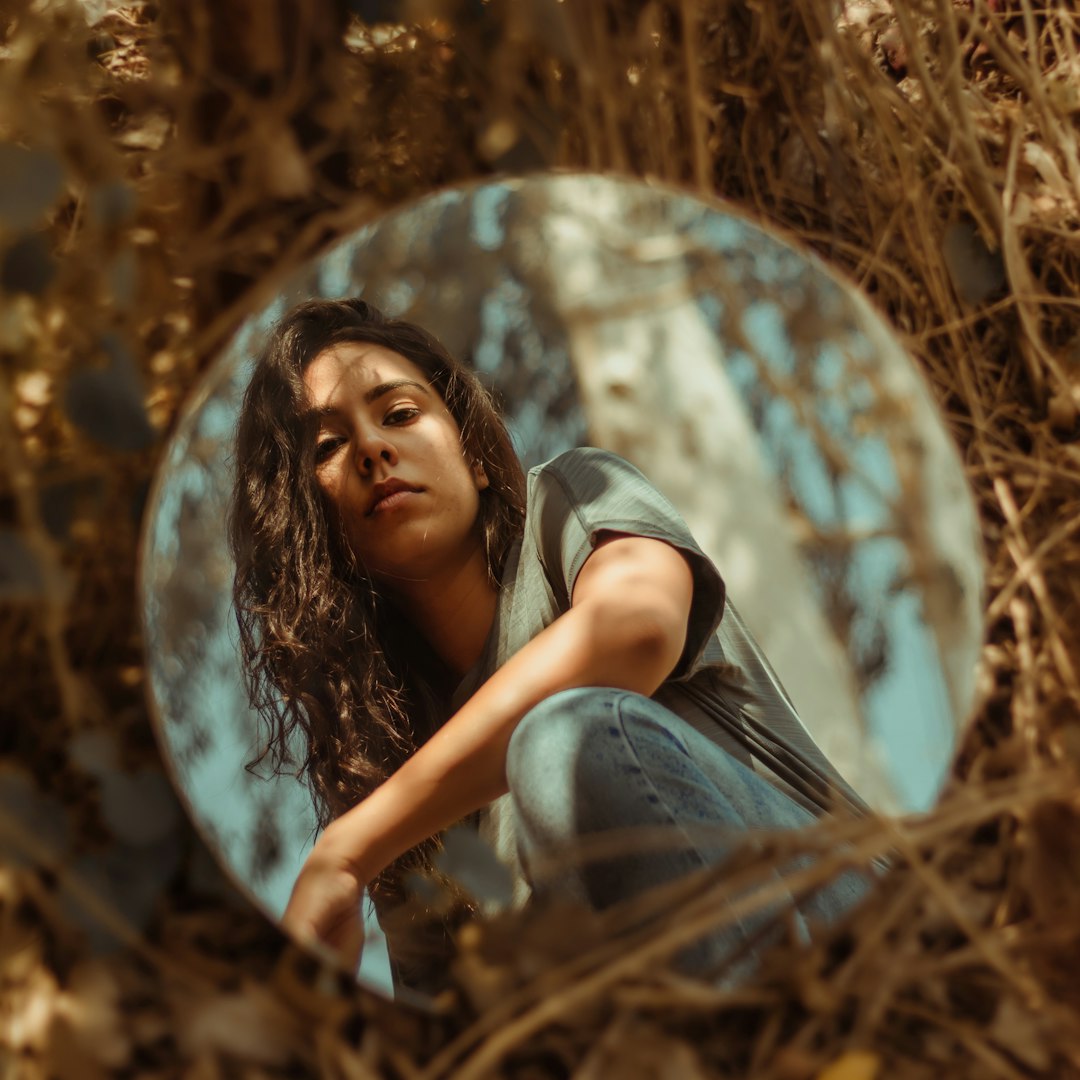
What Is a Pixel Circle Maker?
A pixel circle maker is an online image cropper. It cuts your picture into a round shape. The final image often has a transparent background. That means the corners disappear. Magic? Not quite. But it feels close.
Most of these tools work in your browser. You do not need to install heavy software. You do not need to learn fancy editing terms. You just need an image and a few clicks.
Common uses include:
- LinkedIn headshots for a neat personal brand.
- Website team photos that look clean and equal.
- YouTube channel icons with a friendly shape.
- Discord or Slack avatars that pop in tiny spaces.
- Product badges for shops and promos.
Why Use a Circle Crop?
Squares are useful. Rectangles are classic. But circles feel softer. They guide the eye to the center. That is perfect for faces, logos, pets, and products.
A circle crop also hides messy corners. Maybe your background has a chair, a lamp, or half a sandwich. A circle crop can save the day. The sandwich never existed. We will not tell.
6 Free Online Tools for Circular Image Crops
1. Canva
Canva is friendly and colorful. It works well for beginners. You can upload a photo, place it inside a circular frame, and export it. The free plan is enough for many basic circle crops.
Best for: social media images, profile photos, team pages, and simple design layouts.
Simple tip: Search for “circle frame” inside the editor. Drop your photo into the frame. Resize it until the face or object looks centered.
- Easy drag and drop tools.
- Good for adding text or backgrounds.
- Great if you want more than just a crop.
2. Adobe Express
Adobe Express is another smooth option. It has simple editing tools and nice templates. You can make a round crop, adjust the image, and download it for web use.
Best for: polished profile photos and branded graphics.
Simple tip: Use it when you want your circle image to sit inside a larger post, banner, or flyer. It is not only a cropper. It is a small design studio in your tab.
- Clean interface.
- High quality export options.
- Useful for social posts and business images.

3. Fotor
Fotor is popular for quick photo edits. It offers cropping, resizing, background tools, and design features. Its circle crop option is great when you want a fast avatar or rounded product image.
Best for: quick edits with a bit of polish.
Simple tip: After the crop, adjust brightness and contrast. A tiny change can make a face look clearer. Just do not overdo it. Nobody needs to look like a glowing moon.
- Easy for beginners.
- Offers extra photo fixes.
- Good for portraits and product shots.
4. Kapwing
Kapwing is useful for creators. It handles images, videos, memes, and more. For circular image crops, you can use shape masks and export your final design.
Best for: creators who also work with video, thumbnails, or memes.
Simple tip: Use a transparent background if you want the image to fit anywhere. This works well for stickers, icons, and overlays.
- Good for mixed media projects.
- Simple shape controls.
- Helpful for social content creators.
5. LunaPic
LunaPic looks old school. Do not judge it by its outfit. It can still do a lot. It is free, browser based, and quick. It has tools for transparency, cropping, borders, and effects.
Best for: fast edits with no fancy setup.
Simple tip: LunaPic is great when you want speed. Upload the photo, choose a circle crop or transparency tool, then save. It is not flashy. It works.
- No heavy interface.
- Many image effects.
- Good for simple circle avatars.
6. PineTools
PineTools is like a toolbox for the internet. It has many small utilities. Some are for images. Some are for text. Some are wonderfully random. Its image tools can help you crop and shape photos without fuss.
Best for: users who love simple web tools with direct controls.
Simple tip: If you want less design noise, PineTools may feel nice. It is practical. It does the job. No confetti needed.
- Simple and direct.
- No complex learning curve.
- Useful for quick image tasks.
How to Make a Clean Circle Crop
The tool matters. But your original photo matters too. A messy photo can become a messy circle. A sharp photo can become a tiny masterpiece.
- Pick a clear image. Use a high resolution photo if possible.
- Place the subject in the center. Faces should not touch the edge.
- Leave breathing room. A little space around the head looks better.
- Use a transparent background. This makes the circle work on any page.
- Download as PNG. PNG is best for transparency.
If you download as JPG, the background may turn white. That is fine for some uses. But it is not ideal for flexible design. For a true floating circle, choose PNG.

What Size Should Your Circle Image Be?
Size depends on where the image will go. But here are easy starting points:
- Profile photo: 400 by 400 pixels.
- Website team photo: 600 by 600 pixels.
- Small icon: 256 by 256 pixels.
- High quality avatar: 1000 by 1000 pixels.
Always start bigger if you can. You can shrink an image with good results. But making a tiny image bigger often looks blurry. Pixels do not enjoy being stretched. They get grumpy.
Quick Comparison
| Tool | Best Use | Beginner Friendly? |
|---|---|---|
| Canva | Social graphics and avatars | Yes |
| Adobe Express | Polished branded images | Yes |
| Fotor | Fast photo fixes | Yes |
| Kapwing | Creator projects | Yes |
| LunaPic | No frills editing | Mostly |
| PineTools | Simple utility tasks | Yes |
Final Thoughts
A circular crop is a tiny design move. But it can make your image feel cleaner and more modern. It also brings order to a page full of different photo sizes.
If you want the easiest path, start with Canva or Adobe Express. If you want speed, try Fotor or LunaPic. If you make lots of social content, Kapwing is handy. If you like simple tools, PineTools is a neat pick.
The best pixel circle maker is the one you actually enjoy using. Upload a photo. Crop it round. Download it. Then admire your new circle like it is a tiny digital cookie.