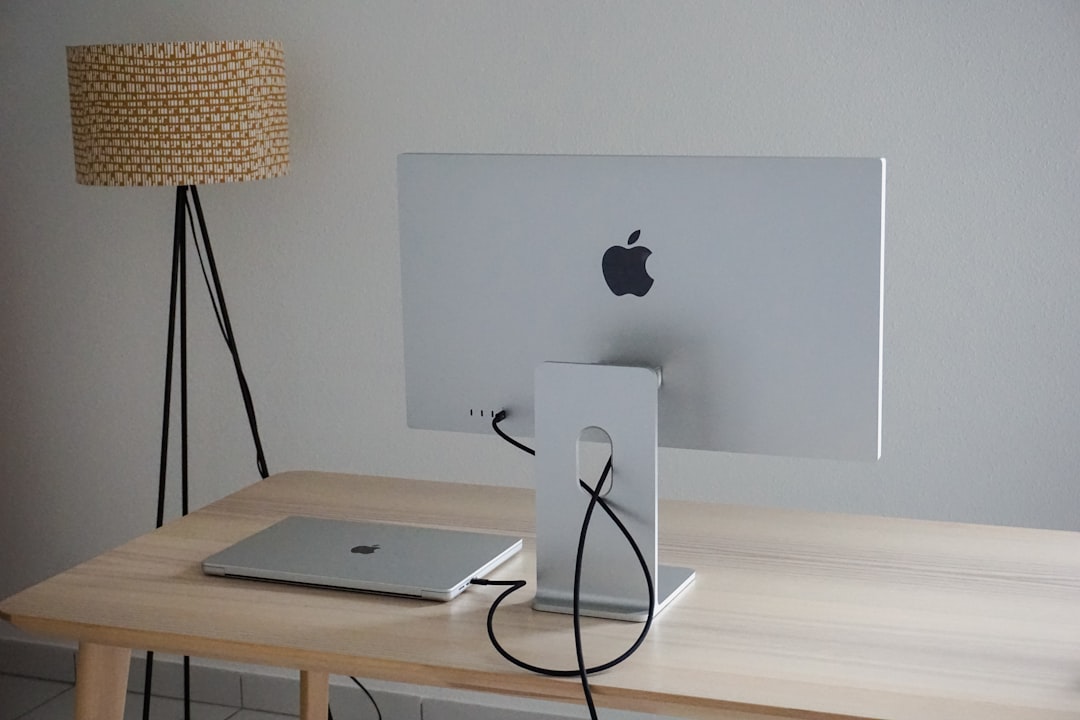
Thunderbolt has always felt a little like a secret tunnel on the Mac: fast, direct, and capable of much more than simply connecting an external display or SSD. For screen sharing, a Thunderbolt connection can turn two nearby Macs into a low-latency workstation pair, especially when you use Thunderbolt Bridge to create a direct network link. The right app matters, though, because the best experience depends on how well the software handles resolution, input lag, multi-display setups, permissions, and local network routing.
TLDR: For most Mac users, Apple Screen Sharing is the best starting point because it is free, built into macOS, and works well over a Thunderbolt Bridge connection. Jump Desktop and Screens are better if you want a polished interface, easier reconnects, and stronger multi-device management. For high-frame-rate work such as video review, animation previews, or remote gaming-style control, Parsec and Splashtop are the most performance-focused options.
Why Thunderbolt Changes the Screen Sharing Experience
Typical screen sharing happens over Wi-Fi or Ethernet. Both can be excellent, but Wi-Fi can introduce latency, packet loss, and unpredictable performance when the network is crowded. Thunderbolt, by contrast, can create a direct Mac-to-Mac network interface called Thunderbolt Bridge. That means you can connect two Macs with a Thunderbolt cable and send screen sharing traffic over a fast, local, wired route.
This does not magically turn every screen sharing app into a native Thunderbolt display solution. Instead, Thunderbolt acts like an extremely fast network path. The app still compresses and streams the screen, but the connection is often more stable and responsive than conventional wireless networking.

For best results, both Macs should support Thunderbolt 3, Thunderbolt 4, or USB4 over USB C. Older Thunderbolt 2 Macs can also work with the correct adapters, although performance and compatibility may vary. The important idea is that the screen sharing app must be able to communicate over the local network interface created by Thunderbolt Bridge.
Before Choosing an App: Set Up Thunderbolt Bridge
Before comparing apps, it helps to know the basic setup. On macOS, connect the two Macs with a Thunderbolt cable, then open System Settings. Go to Network and look for Thunderbolt Bridge. If it is not visible, you may need to add it manually from the network service menu.
In many cases, macOS assigns addresses automatically. If the Macs do not see each other, you can set manual IP addresses, such as 192.168.10.1 on one Mac and 192.168.10.2 on the other, using the same subnet. Once both Macs can communicate, enable screen sharing on the host Mac under General > Sharing > Screen Sharing.
This step is worth doing even if you plan to use a third-party app. A good Thunderbolt Bridge connection makes everything else feel better.
1. Apple Screen Sharing: Best Free Option
Apple Screen Sharing is the most obvious choice, and for many users it is also the smartest one. It is built into macOS, requires no subscription, and works cleanly with local network connections, including Thunderbolt Bridge. You can access it from Finder by selecting the other Mac in the Network section, or by using the Screen Sharing app directly.
The main advantage is simplicity. If you are controlling a Mac mini from a MacBook Pro, managing a headless media server, or helping someone at the same desk, Apple’s built-in tool is fast enough and reliable. It supports clipboard sharing, scaling, and remote keyboard and mouse input.
- Best for: Local Mac-to-Mac control, headless Macs, basic administration.
- Strengths: Free, secure, native macOS integration, easy setup.
- Limitations: Interface is plain, performance is not ideal for video-heavy work, fewer management features.
Over Thunderbolt Bridge, Apple Screen Sharing can feel significantly better than it does over Wi-Fi. The lower network overhead helps reduce hesitation when dragging windows, navigating Finder, or adjusting settings. It is not the flashiest app, but it is the benchmark every Mac user should try first.
2. Jump Desktop: Best All-Around Premium Choice
Jump Desktop is one of the most polished remote desktop apps for macOS. It supports VNC and RDP, but its standout feature is Fluid Remote Desktop, a protocol designed to feel smooth and responsive. While Jump is often used over the internet, it also works very well on local networks, which makes it a strong candidate for Thunderbolt Bridge setups.
Jump Desktop is especially useful if you manage multiple Macs. It remembers connections, handles credentials gracefully, and provides a cleaner experience than Apple’s built-in tool. If you regularly move between a desktop Mac in the studio and a laptop on the same desk, Jump makes that workflow feel natural.
- Best for: Power users, creative professionals, multi-Mac workspaces.
- Strengths: Smooth performance, excellent interface, reliable reconnects, strong keyboard support.
- Limitations: Paid software, some advanced features depend on configuration.
For Thunderbolt, the key is to make sure Jump is connecting over the local address, not routing unnecessarily through cloud discovery. Once configured properly, it can deliver a highly responsive experience suitable for everyday work.
3. Screens: Best Mac Native Experience for Everyday Use
Screens by Edovia is another favorite among Mac users who want something more refined than basic VNC. It has a beautifully Mac-like interface, excellent connection organization, and thoughtful features such as saved credentials, curtain mode support in some configurations, and easy access from iPhone or iPad if needed.
Screens is not necessarily the fastest app in every scenario, but it strikes a great balance between usability and capability. Over a Thunderbolt Bridge connection, it benefits from the stable local network path and becomes a comfortable tool for controlling another Mac at close range.
- Best for: Users who value design, organization, and cross-device access.
- Strengths: Elegant interface, simple connection management, good macOS integration.
- Limitations: Paid app, performance depends on VNC configuration.
If Apple Screen Sharing feels too basic but you do not need the heavier remote-work features of enterprise tools, Screens is a very appealing middle ground.
4. Apple Remote Desktop: Best for Mac Administration
Apple Remote Desktop is not just a screen sharing app; it is an administration suite. It allows you to observe and control multiple Macs, send commands, install packages, generate reports, and manage lab or office environments. For a single home Mac, it is usually more than necessary. For a school, studio, or IT bench, it can be extremely useful.
When used over a direct Thunderbolt network, Apple Remote Desktop can make maintenance tasks quicker and more dependable. Imagine connecting a technician’s MacBook to a client Mac with Thunderbolt, launching Remote Desktop, and performing updates, file checks, or configuration changes without relying on office Wi-Fi.
- Best for: IT administrators, classrooms, labs, production studios.
- Strengths: Multi-Mac management, reporting, package installation, native Apple tooling.
- Limitations: Overkill for casual users, aging interface, paid App Store purchase.
5. Parsec: Best for High-Performance Visual Streaming
Parsec is best known for low-latency game streaming, but that same performance focus makes it excellent for visually demanding remote control. If you need smoother motion than traditional VNC can provide, Parsec is worth considering. It is particularly interesting for artists, editors, animators, and developers reviewing motion-heavy content.
Over Thunderbolt Bridge, Parsec can take advantage of the fast local link, though setup may require attention to networking details. Parsec normally expects online account-based connection handling, but local conditions still influence latency and quality. When everything is configured correctly, the result can feel impressively immediate.
- Best for: High-frame-rate visuals, animation preview, interactive 3D, low-latency control.
- Strengths: Very responsive, excellent video quality, optimized for motion.
- Limitations: Less Mac-administration focused, account-based workflow, not as simple as Apple Screen Sharing.
6. Splashtop: Best for Business Remote Access
Splashtop is a strong option for businesses that want smooth performance, centralized management, and dependable remote access. It is commonly used by IT teams and support providers, but it also works well for individual users who want a more professional solution than basic screen sharing.
Splashtop is known for good video performance and broad platform support. In a Thunderbolt-connected local setup, it may not always be as direct-feeling as a simple native VNC session, but its overall reliability and business features make it attractive.
- Best for: Business users, support teams, mixed-device environments.
- Strengths: Strong performance, management tools, security controls, reliable remote access.
- Limitations: Subscription model, more setup than built-in macOS options.
7. AnyDesk and TeamViewer: Best for Occasional Support
AnyDesk and TeamViewer are popular remote support tools. They are not the first apps most people think of for Thunderbolt-specific workflows, but they can still be useful when you need quick access, especially if the same app is already used in your organization.
Their main strength is convenience across networks and platforms. Their main weakness, in this context, is that they are not designed specifically for direct Mac-to-Mac Thunderbolt Bridge performance. They may route connections in ways that are less predictable than local-only tools. Still, for occasional troubleshooting, they remain practical choices.
- Best for: Quick support sessions, cross-platform help, nontechnical users.
- Strengths: Easy session sharing, popular, broad compatibility.
- Limitations: Not ideal for local-only Thunderbolt workflows, licensing restrictions may apply.
Which App Should You Choose?
If your goal is simple, local control between two nearby Macs, start with Apple Screen Sharing. It costs nothing, respects macOS security, and works beautifully with Thunderbolt Bridge once configured. If you want a more refined experience for daily use, choose Jump Desktop or Screens. If you manage many Macs, Apple Remote Desktop is the specialist tool. If motion quality matters most, try Parsec or Splashtop.
Here is a quick decision guide:
- Best free app: Apple Screen Sharing
- Best premium everyday app: Jump Desktop
- Best elegant Mac-style app: Screens
- Best admin tool: Apple Remote Desktop
- Best for low-latency visuals: Parsec
- Best for business access: Splashtop
Final Thoughts
Thunderbolt screen sharing is not about replacing a monitor cable with magic; it is about creating a fast, stable network path between Macs. Once that path exists, the right screen sharing app can make a second Mac feel almost like an extension of your main workstation. For most people, the winning combination is simple: a good Thunderbolt cable, Thunderbolt Bridge, and Apple Screen Sharing. For users who want more polish, performance, or administration power, the Mac ecosystem offers several excellent upgrades.
The best app ultimately depends on your workflow. A developer controlling a headless Mac mini, a video editor checking exports on another machine, and an IT technician configuring a row of Macs all need different tools. The good news is that Thunderbolt gives all of them a faster foundation to build on.