
Large video files can be difficult to cut, trim, or divide into smaller clips, especially when a creator needs fast results without dealing with a complex editing timeline. While VEED.io is a popular browser-based editor for quick splitting and online video edits, many teams, marketers, educators, and social media creators also look for alternatives that handle long recordings, large uploads, and different export needs with less friction.
TLDR: The best video splitter software like VEED.io depends on whether the editor prefers a browser tool, a desktop app, or a lightweight utility. Kapwing is strong for online collaborative editing, Clipchamp works well for Windows users and social media workflows, Movavi Video Editor offers a more traditional desktop editing experience, and LosslessCut is ideal for fast, no-recompression splitting. For very large videos, desktop options often provide the smoothest performance.
What Makes a Good Video Splitter for Large Files?
A good video splitter should do more than simply cut a clip in half. For large files, the software needs to remain stable, respond quickly, and offer export settings that do not unnecessarily reduce quality. Since many creators deal with webinars, podcasts, lectures, interviews, gaming sessions, and event recordings, the right tool should make it simple to separate long footage into usable parts.
The most useful video splitter software usually includes:
- Accurate timeline cutting for trimming footage to the exact second or frame.
- Support for large file formats such as MP4, MOV, AVI, MKV, and WebM.
- Fast export options without forcing unnecessary compression.
- Simple interface design that does not require professional editing experience.
- Cloud or local processing, depending on whether the user values accessibility or speed.
Although VEED.io is convenient because it works online, large videos can sometimes be challenging for browser-based tools due to upload time, internet speed, file size limits, and cloud processing delays. That is why many editors compare both online and desktop alternatives before choosing the best option.

1. Kapwing: Best VEED.io Alternative for Online Collaboration
Kapwing is one of the closest alternatives to VEED.io because it is also browser-based and designed for quick, accessible content creation. It allows creators to upload a video, split it on a timeline, remove unwanted sections, rearrange clips, and export a revised version without installing software.
Kapwing is especially useful for marketing teams, social media managers, teachers, and podcasters who need collaborative workflows. Several team members can work on projects, add comments, manage brand assets, and prepare content for platforms such as TikTok, YouTube, Instagram, and LinkedIn. This makes it more than a basic splitter; it functions as a lightweight online studio.
Key Features
- Browser-based editing for cutting videos without downloads.
- Multi-track timeline for splitting clips, adding audio, and including overlays.
- Automatic subtitles for turning long videos into accessible short clips.
- Templates and resizing tools for social media exports.
- Team workspaces for shared projects and brand consistency.
Best for: Creators who want an online tool similar to VEED.io but with strong collaboration and social media repurposing features.
Limitations: Since Kapwing runs in a browser, very large video files may take time to upload and process. Users with slow internet connections may find desktop tools more practical for heavy projects.
2. Microsoft Clipchamp: Best for Windows Users and Quick Social Clips
Microsoft Clipchamp is another useful video splitter for creators who prefer a simple, modern editor. It is available as a web app and is also integrated with many Windows systems, making it an accessible choice for people who already work in the Microsoft ecosystem.
Clipchamp is designed for simplicity. A user can import a large video, drag it to the timeline, use the split tool to cut sections, delete unwanted parts, and export the final result in common resolutions. It also includes stock media, text overlays, transitions, screen recording, and webcam recording, which can be helpful for tutorials and business videos.
Key Features
- Simple split and trim controls suitable for beginners.
- Built-in Windows availability for many users.
- Screen and webcam recording for educational or presentation content.
- Ready-made templates for social media and business videos.
- Cloud and local workflow options depending on the setup.
Clipchamp is particularly helpful for users who do not want a complicated professional editor. Its interface feels clean, visual, and approachable. For example, a teacher splitting a one-hour lesson into smaller modules or a business owner cutting a product demo into shorter clips can usually complete the task without needing advanced editing skills.
Best for: Windows users, beginners, educators, and small businesses that need a straightforward VEED.io-like video splitter.
Limitations: Clipchamp may not be the fastest tool for extremely large files, and some export or premium media options may depend on the user’s account or plan.

3. Movavi Video Editor: Best Desktop Option for Easy Large Video Cutting
Movavi Video Editor is a strong choice for creators who like the ease of VEED.io but prefer the reliability of desktop software. Because it runs locally on a computer, it can often handle large videos more comfortably than web-based editors, especially when the file is several gigabytes in size.
Movavi offers a traditional editing timeline with intuitive tools for splitting, trimming, joining, cropping, adding transitions, inserting titles, and improving audio. It is not as complex as professional software such as Adobe Premiere Pro or DaVinci Resolve, but it provides enough control for most everyday editing projects.
Key Features
- Local desktop performance for managing large video files.
- Easy split, trim, and merge tools for quick editing.
- Transitions, filters, and titles for polished videos.
- Audio editing options for cleaning up voice recordings or music.
- Multiple export formats for sharing across devices and platforms.
Movavi is especially useful for those who regularly edit long recordings, such as webinars, event videos, course lessons, travel footage, or customer testimonials. Instead of waiting for a large file to upload to a cloud server, the editor can import the footage directly from a local drive and begin cutting immediately.
Best for: Users who want an easy desktop editor that can handle large files more reliably than many browser-based tools.
Limitations: Movavi requires installation and may need sufficient computer resources for smooth playback and exporting. It is simpler than high-end editing suites, but users still need to manage local storage and project files.
4. LosslessCut: Best for Fast Splitting Without Quality Loss
LosslessCut is one of the best tools for editors who care about speed and original quality. Unlike many video editors that re-encode footage during export, LosslessCut is designed to cut and split videos without unnecessary recompression. This makes it an excellent option for large videos that only need simple trimming or segmentation.
The software is open-source and lightweight, and it supports many common video formats. Its biggest advantage is efficiency. A creator can open a large recording, mark the sections to keep or remove, and export the clips quickly because the software does not rebuild the entire video from scratch in the same way a full editor often does.
Key Features
- Lossless cutting to preserve original video quality.
- Fast exports because files are not fully re-encoded.
- Support for many formats through FFmpeg-based processing.
- Segment export for extracting multiple clips from a long video.
- Lightweight workflow with minimal distractions.
LosslessCut is not a replacement for a full online editor like VEED.io when captions, templates, effects, and branding tools are required. However, for pure splitting, it is one of the fastest choices available. It is especially useful for security footage, screen recordings, lectures, interviews, and raw camera files where the main task is to cut sections without damaging quality.
Best for: Users who need quick, clean video splitting without quality loss or long export times.
Limitations: LosslessCut has fewer creative editing tools. It is ideal for cutting and extracting, but not for designing polished social media videos with text animations, music, and visual effects.
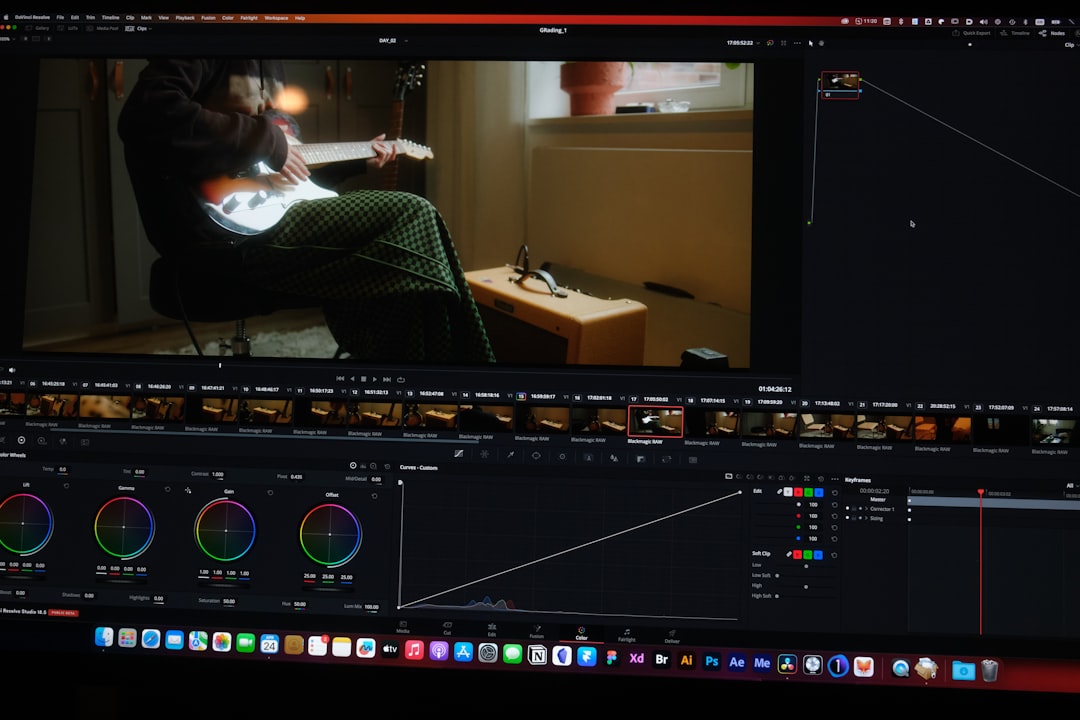
Comparison: Which VEED.io Alternative Should Be Chosen?
The best choice depends on the editing situation. A browser-based tool is convenient when accessibility and collaboration matter most, while desktop software is often better when file size and export speed are the priority.
- Choose Kapwing when the workflow involves online collaboration, subtitles, templates, and social video repurposing.
- Choose Clipchamp when a simple editing experience is needed, especially on Windows devices.
- Choose Movavi Video Editor when large videos need to be edited locally with a friendly interface and more creative tools.
- Choose LosslessCut when the only goal is fast splitting with minimal quality loss.
For small and medium-sized clips, online options may feel more convenient. For very large videos, such as a two-hour webinar or 4K event recording, desktop tools like Movavi and LosslessCut may save time by removing the upload step. The decision usually comes down to whether the user needs creative editing features or fast technical splitting.
Tips for Cutting Large Videos More Easily
Before splitting large videos, editors can improve the workflow by preparing files properly. Large recordings should be stored on a fast drive, preferably an SSD, to reduce lag during playback. If the file is stored on an external drive, a high-speed connection can also make a noticeable difference.
It is also smart to keep original files untouched. Editors should save a backup copy before cutting, especially when working with important event recordings, client videos, or course material. If the software supports project files, saving the project regularly can prevent lost work.
For online tools, a stable internet connection matters. Uploading a large file over an unreliable connection may cause delays or failed uploads. In those cases, a local desktop splitter may be the safer option.
Final Thoughts
VEED.io remains a convenient option for cutting and editing videos online, but it is not the only tool available. Kapwing, Clipchamp, Movavi Video Editor, and LosslessCut each serve a different type of user. Some are better for collaboration and social media output, while others are better for large files, fast exports, and quality preservation.
For creators who regularly cut long videos into smaller clips, the most effective solution is the one that matches the project’s purpose. A marketer may prefer Kapwing, a Windows beginner may prefer Clipchamp, a course creator may prefer Movavi, and a technical user may prefer LosslessCut. With the right video splitter, large files become much easier to manage, organize, and share.
FAQ
1. What is the best video splitter like VEED.io?
Kapwing is one of the closest alternatives to VEED.io because it offers online video splitting, subtitles, templates, and collaboration. However, the best choice depends on whether the user needs online editing, desktop performance, or lossless cutting.
2. Which software is best for cutting very large videos?
LosslessCut and Movavi Video Editor are strong choices for large videos because they run on a desktop. LosslessCut is best for fast splitting without quality loss, while Movavi is better for broader creative editing.
3. Can online video splitters handle large files?
Online video splitters can handle many large files, but performance depends on upload speed, file size limits, server processing, and account restrictions. For extremely large or high-resolution files, desktop software is often more efficient.
4. Does splitting a video reduce quality?
Splitting a video can reduce quality if the software re-encodes the file with lower export settings. Tools such as LosslessCut are designed to cut videos without unnecessary recompression, helping preserve the original quality.
5. What is the easiest video splitter for beginners?
Clipchamp is one of the easiest options for beginners, especially for Windows users. It has a clean interface, simple split controls, templates, and basic editing tools that are easy to understand.
6. Should creators use a free or paid video splitter?
Free tools may be enough for basic splitting, especially when only a few clips are needed. Paid tools are often better when users need larger file support, faster exports, premium templates, advanced features, or professional workflow options.