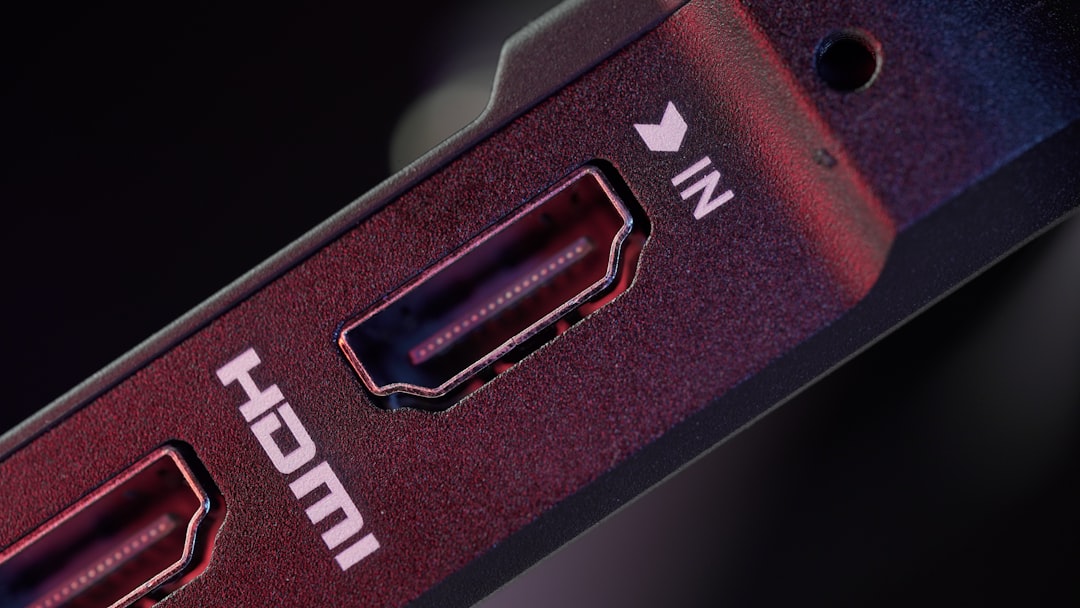
A ViewSonic monitor displaying a “No Signal” message can be frustrating, especially when the computer appears to be running normally. This issue is common and usually points to a connection, hardware, or configuration problem rather than a broken display. Fortunately, most signal problems can be resolved quickly without professional repair.
TLDR: A ViewSonic monitor showing “No Signal” is usually caused by loose cables, incorrect input selection, faulty ports, or graphics card issues. Start by checking cable connections, switching input sources, and restarting both the monitor and the computer. If that doesn’t work, test different cables, ports, or devices to isolate the problem. In most cases, one of these eight quick fixes restores the display within minutes.
Why Does a ViewSonic Monitor Say “No Signal”?
When a ViewSonic monitor displays “No Signal,” it means the monitor is powered on but is not detecting a video signal from the connected device. This could be a desktop PC, laptop, gaming console, or other media device.
The issue typically falls into one of three categories:
- Connection problems (loose or damaged cables)
- Input source mismatch (wrong HDMI, VGA, or DisplayPort selected)
- Hardware or driver issues (graphics card or system malfunction)
Below are eight quick fixes that solve most ViewSonic “No Signal” errors.
1. Check and Secure All Cable Connections
The simplest fix is often the correct one. A loose HDMI, DisplayPort, DVI, or VGA cable can prevent signal transmission.
Steps to follow:
- Turn off both the monitor and the computer.
- Unplug the video cable from both ends.
- Reconnect it firmly until fully seated.
- Tighten screws if using VGA or DVI.
Sometimes internal pins may not align correctly. Reseating the cable ensures proper contact.
2. Select the Correct Input Source
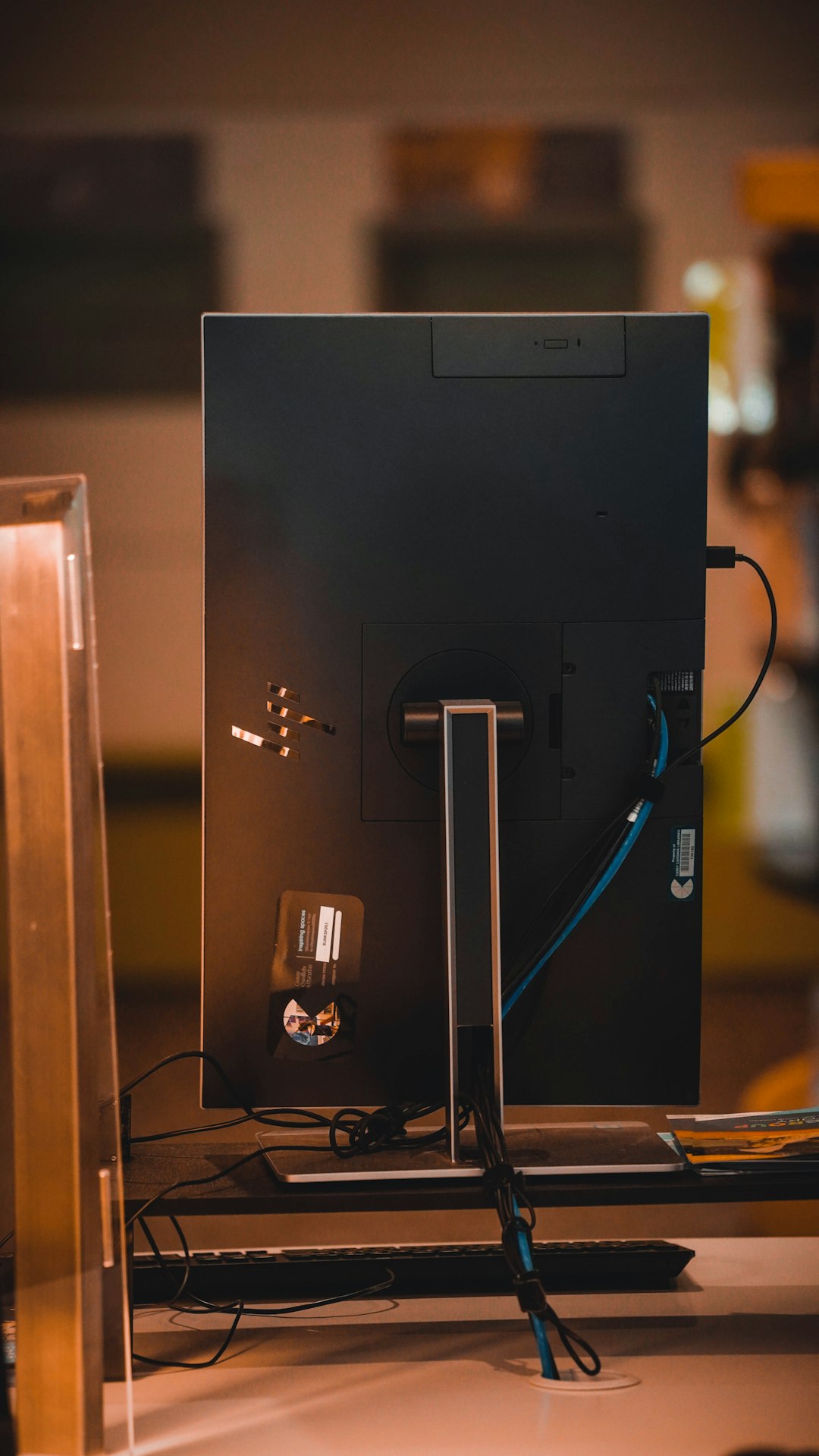
ViewSonic monitors often have multiple input options such as HDMI 1, HDMI 2, DisplayPort, or VGA. If the wrong input source is selected, the monitor will show “No Signal.”
How to fix it:
- Press the Menu button on the monitor.
- Navigate to Input Select.
- Choose the correct port that matches the connected cable.
This issue frequently occurs after switching devices or reconnecting cables.
3. Restart the Monitor and the Computer
A simple reboot can resolve temporary communication errors between the system and the monitor.
Power cycle process:
- Turn off the computer.
- Turn off and unplug the monitor.
- Disconnect the monitor from power for 60 seconds.
- Reconnect everything and power both devices back on.
This resets the connection handshake between devices.
4. Test With a Different Cable
Damaged or low-quality cables are a frequent cause of signal loss. Even if a cable looks fine externally, it may be internally damaged.
Common cable types:
- HDMI
- DisplayPort
- VGA
- DVI
Swap the current cable with a known working one. If the monitor works afterward, the original cable was the issue.
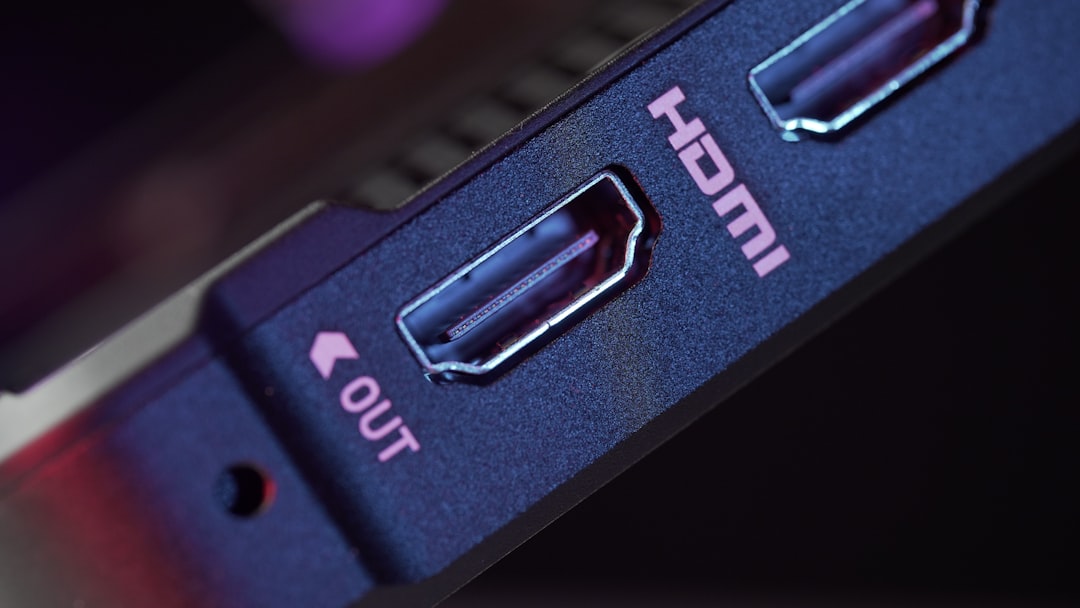
5. Try Another Port on the Computer or Monitor
Sometimes the issue lies with the port rather than the cable. Modern GPUs and monitors often have multiple output/input options.
Troubleshooting step:
- Switch from HDMI to DisplayPort (if available).
- Try another HDMI port on the monitor.
- Test a different output port on the graphics card.
If the image appears when using a different port, the original port may be faulty.
6. Reseat or Check the Graphics Card
If using a desktop PC, the graphics card may have shifted slightly, especially after moving the system.
Steps (Desktop Only):
- Shut down and unplug the PC.
- Open the case carefully.
- Remove and reseat the graphics card.
- Ensure power connectors are properly attached.
If possible, test with integrated graphics (if the CPU supports it). Plug the monitor directly into the motherboard’s video output to see if the GPU is causing the issue.
7. Update or Reinstall Graphics Drivers
Outdated, corrupted, or incompatible drivers can prevent your computer from sending video output correctly.
How to update drivers:
- Boot into Safe Mode if necessary.
- Open Device Manager.
- Locate Display Adapters.
- Update or uninstall and reinstall the driver.
After reinstalling, restart the computer and check if the signal returns.
8. Test the Monitor With Another Device
To determine whether the monitor itself is defective, connect it to another laptop, desktop, or gaming console.
If the second device works: The original computer is the problem.
If it still shows “No Signal”: The monitor may require service or replacement.
Common Cable Comparison Chart
| Cable Type | Max Resolution | Audio Support | Common Usage | Signal Stability |
|---|---|---|---|---|
| HDMI | Up to 4K and higher | Yes | Modern PCs, consoles, laptops | Very stable |
| DisplayPort | Up to 8K | Yes | Gaming PCs, high refresh monitors | Extremely stable |
| DVI | Up to 1440p | No | Older desktops | Stable |
| VGA | Up to 1080p | No | Legacy hardware | Less reliable |
Additional Tips to Prevent “No Signal” Issues
- Use high-quality certified cables.
- Avoid bending cables sharply.
- Keep monitor firmware up to date (if supported).
- Ensure your power supply unit provides stable voltage.
- Avoid frequent hot-plugging of cables.
Proactive maintenance reduces the chance of signal detection failures.
When to Contact Support
If none of the eight fixes work, it may indicate:
- A failed graphics card
- Damaged motherboard output
- A defective monitor panel or internal board
Check your ViewSonic warranty status. If the monitor is still covered, professional servicing may be the best option.
Frequently Asked Questions (FAQ)
1. Why does my ViewSonic monitor say “No Signal” but my PC is on?
This usually means the monitor is not receiving video data. The issue is often a loose cable, incorrect input source, or graphics card problem.
2. Can a bad HDMI cable cause “No Signal”?
Yes. Damaged or low-quality HDMI cables commonly cause signal loss. Testing with a different cable is one of the quickest troubleshooting steps.
3. How do I reset my ViewSonic monitor?
Unplug the monitor from power for 60 seconds. Some models also allow a factory reset from the on-screen display menu under system settings.
4. Does “No Signal” mean the monitor is broken?
Not necessarily. Most cases are related to cables or input settings. Only after testing with multiple devices should hardware failure be suspected.
5. Why does the monitor work sometimes and then lose signal?
This may indicate a loose connection, overheating graphics card, failing cable, or power instability.
6. Should I use HDMI or DisplayPort?
For modern systems, DisplayPort generally offers the highest performance and stability, especially for high refresh rate monitors. HDMI is widely compatible and convenient.
7. Can RAM issues cause “No Signal”?
Yes. Improperly seated or defective RAM can prevent a computer from completing the boot process, resulting in no video output.
8. How long should troubleshooting take?
Most users resolve the issue within 10–20 minutes by checking cables, input selection, and restarting devices.
A ViewSonic monitor displaying “No Signal” may seem alarming, but it is rarely a permanent failure. By systematically checking cables, inputs, ports, and drivers, users can quickly identify the root cause. In most cases, one of these eight quick fixes restores full functionality without the need for expensive repairs.