
Great design feels invisible. It guides you. It delights you. It makes things simple. But creating that kind of experience used to take hours of sketching, coding, and tweaking. Not anymore. Today’s UX/UI design apps make building beautiful interfaces faster and far more fun.
TLDR: Modern UX/UI design tools make creating stunning interfaces easy, even for beginners. Apps like Figma, Adobe XD, Sketch, InVision, Axure RP, and Framer offer powerful features for wireframing, prototyping, and collaboration. They save time with reusable components, real-time teamwork, and smart automation. Pick the one that fits your workflow, team size, and design goals.
Let’s explore six amazing tools that help you design like a pro. No stress. No overwhelm. Just smooth creativity.
1. Figma – The Collaboration Superstar
Figma is everywhere. And for good reason.
It runs in your browser. No heavy downloads. It works on Windows and Mac. Even on Chromebooks.
The real magic? Real-time collaboration. Your whole team can design together. At the same time. You see cursors moving. You see edits live. It feels like Google Docs. But for UI.
Why designers love it:
- Cloud-based and auto-saves
- Easy sharing with a simple link
- Huge plugin library
- Reusable components and design systems
- Built-in prototyping tools
Figma is perfect for teams. But solo designers love it too. It’s simple to learn. Yet powerful enough for big projects.
If you want flexibility and teamwork in one place, Figma makes it effortless.
2. Adobe XD – Clean and Lightning Fast
Adobe XD feels smooth. Clean. Focused.
If you already use Photoshop or Illustrator, this will feel familiar. The interface is not cluttered. You can move fast.
It’s great for wireframes. And amazing for interactive prototypes.
Standout features:
- Voice prototyping
- Auto-animate transitions
- Repeat grid for fast layouts
- Strong integration with other Adobe apps
Designing a mobile app? XD handles screen transitions beautifully. Want to test micro-interactions? It’s built for that.
It’s a strong choice for designers who already live in the Adobe ecosystem.
3. Sketch – The Classic UI Tool
Sketch helped define modern UI design.
It’s Mac-only. But many designers still swear by it.
Sketch is known for its simple interface and powerful symbol system. Symbols let you reuse elements across your designs. Change it once. Update it everywhere.
Why Sketch still rocks:
- Lightweight and fast
- Excellent vector editing
- Massive plugin community
- Strong design system support
It’s great for designers who like focus. No distractions. Just pure interface design.
If you’re on a Mac and want a stable, proven tool, Sketch is still a top pick.
4. InVision – From Concept to Clickable
InVision started as a prototyping tool. And it’s still fantastic at it.
You can turn static screens into interactive demos in minutes. Great for client presentations. Even better for testing ideas.
Why teams use InVision:
- Clickable prototypes without code
- Easy feedback and commenting
- Strong collaboration tools
- Design system management
It also integrates with other design apps. So you can import screens from Sketch or Photoshop and bring them to life.
If your focus is presenting and validating ideas, InVision makes it simple.
5. Axure RP – The Powerhouse for Complex Projects
Axure RP is not the flashiest tool. But it’s incredibly powerful.
This app is built for detailed wireframes and complex prototypes. Think dashboards. Enterprise apps. Systems with lots of logic.
You can add conditions. Variables. Dynamic content. Almost like coding. But visually.
Best features:
- Advanced interactions and logic
- Conditional flows
- Detailed documentation output
- Great for UX research teams
Axure is ideal for UX designers who work closely with developers. It helps communicate very detailed functionality.
It’s not the simplest tool. But for deep UX work, it’s incredibly effective.
6. Framer – Design Meets Real Interaction
Framer feels modern. Fresh. Interactive.
It’s perfect for designers who want high-fidelity prototypes that feel real. Almost like a finished product.
Framer allows more advanced animations. Smooth transitions. Responsive layouts.
Why Framer stands out:
- Advanced animations
- Responsive design tools
- Interactive components
- Production-ready outputs
It bridges the gap between design and development. Some designers even use it to create live websites.
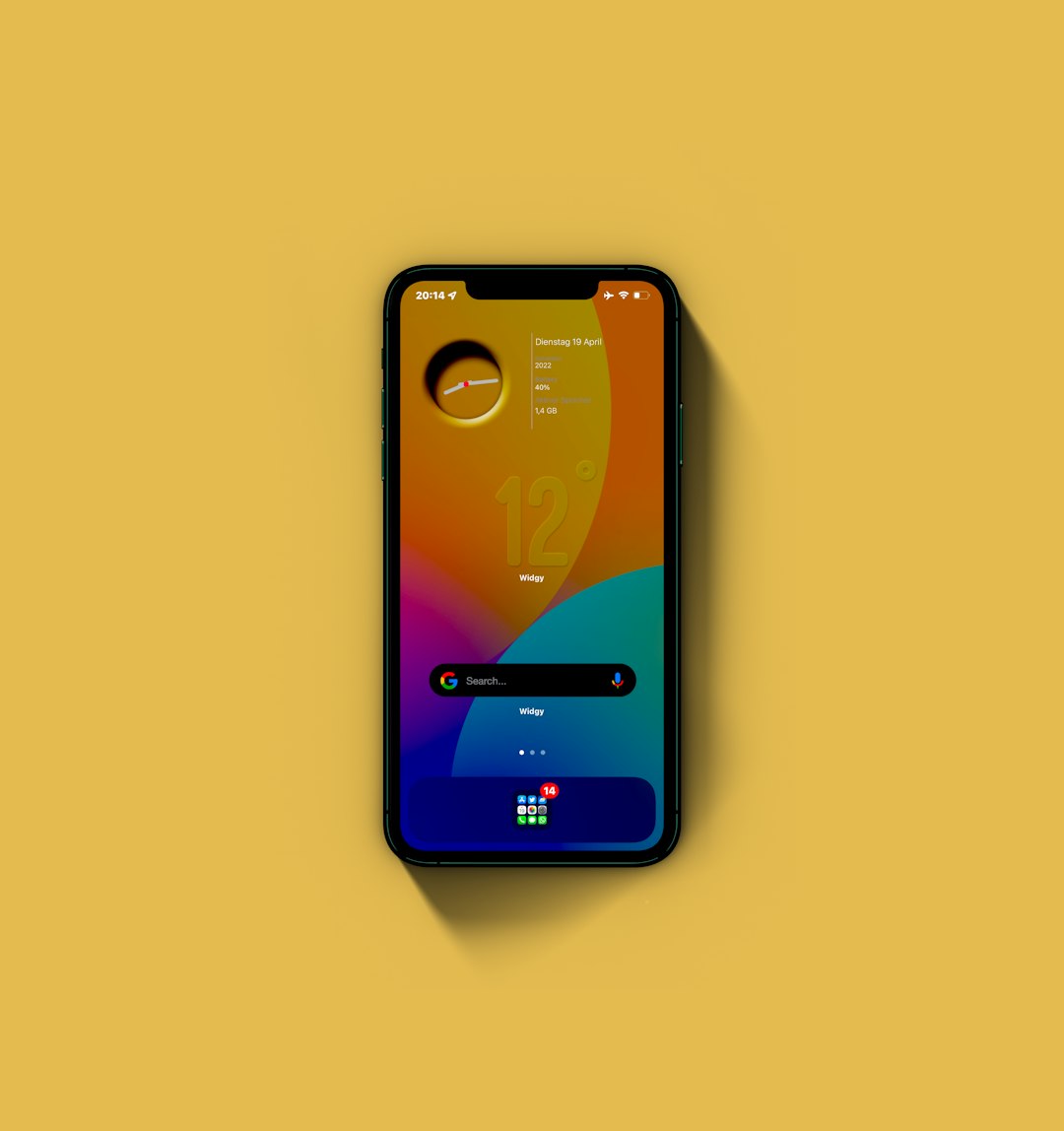
If you love motion and realism, Framer makes interfaces feel alive.
Quick Comparison Chart
| Tool | Best For | Platform | Collaboration | Prototyping Power | Learning Curve |
|---|---|---|---|---|---|
| Figma | Team collaboration | Web, Mac, Windows | Excellent (real-time) | Strong | Easy to Moderate |
| Adobe XD | Adobe users | Mac, Windows | Good | Strong with animations | Easy |
| Sketch | Mac designers | Mac only | Good | Solid | Easy |
| InVision | Clickable demos | Web-based | Very Good | Moderate | Easy |
| Axure RP | Complex UX systems | Mac, Windows | Good | Very Advanced | Steep |
| Framer | High-fidelity interaction | Web, Mac | Strong | Very Advanced | Moderate |
How to Choose the Right One
You don’t need all six.
Start with these questions:
- Do you work solo or in a team?
- Do you need simple wireframes or deep interaction logic?
- Are you presenting to clients often?
- Do you use Mac, Windows, or browser-based tools?
- How steep of a learning curve can you handle?
If you want easy collaboration, go with Figma.
If you love Adobe products, try Adobe XD.
If you’re on Mac and want simplicity, pick Sketch.
If presenting concepts is key, use InVision.
If you design complex systems, choose Axure RP.
If you want polished, realistic motion, explore Framer.
There is no single “best” app. Only the best one for your needs.
Why These Tools Make Design Effortless
Let’s step back.
Why do these apps feel so much easier than older tools?
1. Reusable components.
Design a button once. Use it everywhere.
2. Drag-and-drop simplicity.
No coding required.
3. Real-time previews.
See your idea instantly.
4. Smart automation.
Auto layout. Auto animate. Repeat grids.
5. Cloud collaboration.
No more emailing files back and forth.
These features remove friction. You focus on creativity. Not busywork.
Final Thoughts
Great UX/UI design is about clarity. Speed. Empathy.
The right tool helps you think better. Experiment faster. Share ideas easily.
And the best part? Many of these tools offer free plans. You can explore. Test. Play.
Design should feel exciting. Not exhausting.
With the right app in your toolkit, creating stunning interfaces becomes less about struggle and more about flow.
Pick one. Start small. Build something beautiful today.